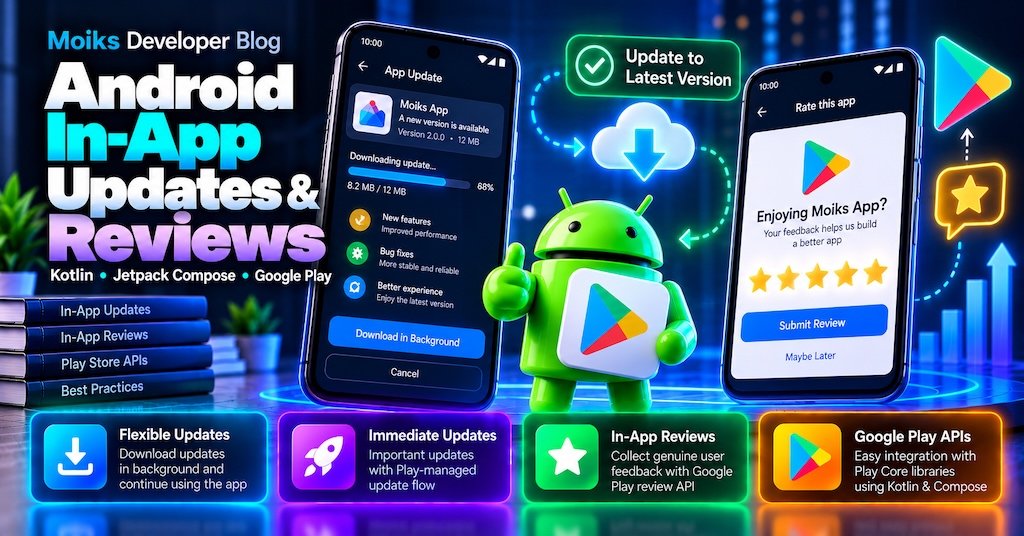
Keeping Android applications updated is essential for delivering new features, fixing bugs, improving security, and maintaining compatibility with newer Android versions.
However, many users do not regularly check the Google Play Store for application updates.
Similarly, collecting genuine user feedback through Google Play reviews is important for improving application quality and understanding the user experience.
Google provides two useful APIs:
- Google Play In-App Updates API — allows eligible applications to request updates without requiring users to manually visit the Play Store.
- Google Play In-App Review API — allows applications to request the Google Play review experience without redirecting users to the Play Store listing.
In this tutorial, we’ll learn how to integrate both APIs using Kotlin, Jetpack Compose, AndroidX Activity Result APIs, and modern Android architecture.
We’ll also build a practical Update & Feedback screen that demonstrates the core functionality.
1. What Are Android In-App Updates?
In-App Updates allow applications distributed through Google Play to request application updates while users are interacting with the app.
Instead of manually opening Google Play, eligible users can update through a Play-managed experience.
Google Play supports two main update flows:
- Flexible updates.
- Immediate updates.
The application can check whether an update is available and choose an appropriate flow.
Basic Update Architecture
Android Application
        |
        v
AppUpdateManager
        |
        v
Google Play
        |
        v
Update Availability
        |
   +----+----+
   |         |
   v         v
Flexible   Immediate
 Update     Update
   |         |
   v         v
Download   Play-managed
in Background Update UI
   |
   v
Complete Update
The application does not download and install an APK from its own server.
Google Play manages the supported update process.
2. Flexible Updates vs Immediate Updates
Understanding the difference between the two update types is important.
| Feature | Flexible update | Immediate update |
|---|---|---|
| User can continue using the app during download | Yes | Generally no |
| Download occurs in background | Yes | Play-managed blocking flow |
| App must complete downloaded update | Yes | Managed by Google Play |
| Suitable for | Routine releases | Important or urgent releases |
| User disruption | Lower | Higher |
Flexible Update
A flexible update allows users to continue using the application while Google Play downloads the update.
Once downloaded, the app prompts the user to complete installation.
Immediate Update
An immediate update presents a more prominent Play-managed update experience.
It is useful when continuing with an older application version could cause significant problems.
Recommendation
For most normal feature releases, prefer flexible updates.
Use immediate updates selectively for situations where the older version is significantly problematic.
3. Requirements for Google Play In-App Updates
Before implementing the API, understand its requirements.
Your application generally needs to:
- Be installed through a supported Google Play distribution or testing flow.
- Have an eligible newer version available through Google Play.
- Use the correct application package and signing configuration.
- Run on a supported device with Google Play services and Play Store functionality.
Important Limitation
In-App Updates are not a general-purpose updater for APKs installed from arbitrary websites.
A locally installed debug APK should not be expected to behave like a production Play Store installation.
Testing Recommendation
Use Google Play internal testing or internal app sharing with the documented test setup.
4. Add the Google Play In-App Update Dependency
Add the Play In-App Update library to your Android application.
In app/build.gradle.kts:
dependencies {

    implementation(
        "com.google.android.play:app-update:<version>"
    )

    implementation(
        "com.google.android.play:app-update-ktx:<version>"
    )
}
Replace the version placeholders with compatible releases from Google’s official documentation.
Why Use the KTX Library?
The KTX library provides Kotlin-friendly extensions for the update API.
The underlying functionality is provided by the Google Play update library.
Important Note
Use the current modular Play libraries rather than outdated monolithic Google Play Core dependencies.
5. Create the AppUpdateManager
Google provides AppUpdateManagerFactory to create the update manager.
Kotlin Example
val appUpdateManager =
    AppUpdateManagerFactory.create(context)
The manager allows your application to:
- Check update availability.
- Check allowed update types.
- Start update flows.
- Monitor flexible update installation state.
- Complete downloaded flexible updates.
Recommended Architecture
Jetpack Compose UI
        |
        v
Update Coordinator
        |
        v
AppUpdateManager
        |
        v
Google Play Update API
Keep update orchestration separate from your main screen’s UI code.
6. Check Whether an Update Is Available
The first step is requesting update information from Google Play.
fun checkForUpdates(
    context: Context,
    onUpdateAvailable: (Boolean) -> Unit
) {

    val manager =
        AppUpdateManagerFactory.create(context)

    manager.appUpdateInfo
        .addOnSuccessListener { info ->

            val available =
                info.updateAvailability() ==
                    UpdateAvailability.UPDATE_AVAILABLE

            onUpdateAvailable(available)
        }
        .addOnFailureListener {
            onUpdateAvailable(false)
        }
}
How It Works
The API retrieves update information.
The application checks the updateAvailability() result.
If Google Play reports an available update, the application can determine which update types are permitted.
Important Improvement
In production, do not represent a failed availability check as definitively meaning that no update exists.
Use a separate error or unavailable state so the UI can distinguish these situations.
7. Understand Update Availability States
The update API may report several availability states.
| State | Meaning |
|---|---|
UPDATE_AVAILABLE | An eligible update is available |
UPDATE_NOT_AVAILABLE | No eligible update is currently available |
DEVELOPER_TRIGGERED_UPDATE_IN_PROGRESS | A previously started developer-triggered update is in progress |
UNKNOWN | Update availability could not be determined |
Important Principle
An available update does not automatically mean every update type is permitted.
Always check whether the requested update flow is allowed.
8. Check Whether Flexible Updates Are Allowed
val updateOptions =
    AppUpdateOptions.newBuilder(
        AppUpdateType.FLEXIBLE
    ).build()

if (appUpdateInfo.isUpdateTypeAllowed(updateOptions)) {

    // Flexible update is permitted.

}
Why Is This Necessary?
Google Play determines whether a particular update type is allowed for the current application and device state.
The application should respect that result.
9. Implement Flexible In-App Updates
Flexible updates are suitable for routine releases.
The user can continue interacting with the app while the update downloads.
Step 1: Register an Activity Result Launcher
Use the Activity Result API.
val updateLauncher =
    registerForActivityResult(
        ActivityResultContracts.StartIntentSenderForResult()
    ) { result ->

        when (result.resultCode) {

            Activity.RESULT_OK -> {
                // Update flow returned successfully.
            }

            Activity.RESULT_CANCELED -> {
                // User canceled or exited the flow.
            }

            else -> {
                // Update flow did not complete normally.
            }
        }
    }
Important Note
The Activity Result callback alone is not enough to determine whether a flexible update has finished downloading or installing.
Use the install-state listener for download progress and completion.
Step 2: Start the Flexible Update
fun startFlexibleUpdate(
    manager: AppUpdateManager,
    appUpdateInfo: AppUpdateInfo,
    launcher: ActivityResultLauncher<IntentSenderRequest>
) {

    val options =
        AppUpdateOptions.newBuilder(
            AppUpdateType.FLEXIBLE
        ).build()

    if (!appUpdateInfo.isUpdateTypeAllowed(options)) {
        return
    }

    manager.startUpdateFlowForResult(
        appUpdateInfo,
        launcher,
        options
    )
}
Important Consideration
Register the launcher during the Activity or Fragment lifecycle, not dynamically after an asynchronous callback.
This ensures reliable Activity Result handling.
10. Monitor Flexible Update Download Progress
Flexible updates support install-state monitoring.
Kotlin Example
val installStateListener =
    InstallStateUpdatedListener { state ->

        when (state.installStatus()) {

            InstallStatus.DOWNLOADING -> {

                val downloaded =
                    state.bytesDownloaded()

                val total =
                    state.totalBytesToDownload()

                val progress =
                    if (total > 0L) {
                        downloaded.toFloat() / total
                    } else {
                        0f
                    }

                // Update progress UI.
            }

            InstallStatus.DOWNLOADED -> {

                // Show a restart / install prompt.
            }

            InstallStatus.INSTALLED -> {

                // Update installed.
            }

            InstallStatus.FAILED -> {

                // Show an appropriate error.
            }

            else -> Unit
        }
    }
Register the listener:
appUpdateManager.registerListener(
    installStateListener
)
Unregister it when no longer needed:
appUpdateManager.unregisterListener(
    installStateListener
)
Best Practice
Use a lifecycle-aware coordinator to manage listener registration and cleanup.
Avoid retaining Activity references longer than necessary.
11. Complete a Downloaded Flexible Update
Once Google Play reports that the update has downloaded, the application should offer to complete it.
appUpdateManager.completeUpdate()Recommended User Experience
Display a message such as:
Update ready to install
A new version has been downloaded. Restart the app to finish updating.
Provide a button:
Restart & Update
When the user confirms, call completeUpdate().
Important Note
Completing an update may restart the application.
Avoid interrupting important user operations without warning.
12. Handle an Already Downloaded Update
A user may leave the application before completing a flexible update.
When the app returns to the foreground, check whether an update has already been downloaded.
appUpdateManager.appUpdateInfo
    .addOnSuccessListener { info ->

        if (
            info.installStatus() ==
                InstallStatus.DOWNLOADED
        ) {

            // Display the update completion prompt.
        }
    }
Why This Matters
The application should not forget about a downloaded update after the Activity is recreated.
The update state is managed by Google Play, not only by your local UI state.
13. Implement Immediate In-App Updates
Immediate updates provide a more prominent update experience.
Kotlin Example
fun startImmediateUpdate(
    manager: AppUpdateManager,
    info: AppUpdateInfo,
    launcher: ActivityResultLauncher<IntentSenderRequest>
) {

    val options =
        AppUpdateOptions.newBuilder(
            AppUpdateType.IMMEDIATE
        ).build()

    if (!info.isUpdateTypeAllowed(options)) {
        return
    }

    manager.startUpdateFlowForResult(
        info,
        launcher,
        options
    )
}
When Should You Use Immediate Updates?
Consider them for:
- Critical compatibility problems.
- Important fixes affecting core functionality.
- Releases where continuing with the old version creates substantial problems.
Important Warning
An immediate update is disruptive.
Do not force users into immediate updates for every minor release.
14. Resume an Interrupted Immediate Update
An immediate update may remain in progress when the application resumes.
Check for the appropriate update state in onResume().
override fun onResume() {
    super.onResume()

    appUpdateManager.appUpdateInfo
        .addOnSuccessListener { info ->

            if (
                info.updateAvailability() ==
                    UpdateAvailability
                        .DEVELOPER_TRIGGERED_UPDATE_IN_PROGRESS
            ) {

                val options =
                    AppUpdateOptions.newBuilder(
                        AppUpdateType.IMMEDIATE
                    ).build()

                if (info.isUpdateTypeAllowed(options)) {

                    appUpdateManager
                        .startUpdateFlowForResult(
                            info,
                            updateLauncher,
                            options
                        )
                }
            }
        }
}
Important Note
This example assumes appUpdateManager and updateLauncher are Activity properties initialized and registered correctly.
Do not recreate the launcher inside onResume().
15. Use Update Priority and Staleness
Google Play provides additional update-related information.
Two useful concepts are:
Update priority
A priority value associated with the update release.
Client version staleness
The number of days since the Play Store became aware of an available update, when available.
Example
val priority =
    appUpdateInfo.updatePriority()

val stalenessDays =
    appUpdateInfo.clientVersionStalenessDays()
Example Policy
val shouldPreferImmediate =
    priority >= 4 ||
        (stalenessDays ?: 0) >= 14
This is an illustrative policy, not a Google-required threshold.
Important Consideration
Update priority must be configured through supported Google Play release mechanisms.
The app cannot arbitrarily assign update priority at runtime.
Always combine priority and staleness checks with isUpdateTypeAllowed().
16. Design a Jetpack Compose Update Screen
Let’s create a small screen that displays update status.
UI State
data class UpdateUiState(
    val isChecking: Boolean = false,
    val updateAvailable: Boolean = false,
    val downloadProgress: Float = 0f,
    val isDownloaded: Boolean = false,
    val message: String = ""
)
Compose UI
@Composable
fun AppUpdateScreen(
    state: UpdateUiState,
    onCheckUpdate: () -> Unit,
    onStartUpdate: () -> Unit,
    onCompleteUpdate: () -> Unit
) {

    Column(
        modifier = Modifier
            .fillMaxSize()
            .padding(24.dp),
        verticalArrangement =
            Arrangement.spacedBy(16.dp)
    ) {

        Text(
            text = "App Updates",
            style =
                MaterialTheme.typography
                    .headlineMedium
        )

        Text(state.message)

        Button(
            onClick = onCheckUpdate,
            enabled = !state.isChecking
        ) {
            Text("Check for Updates")
        }

        if (state.updateAvailable) {

            Button(
                onClick = onStartUpdate
            ) {
                Text("Download Update")
            }
        }

        if (
            state.downloadProgress > 0f &&
            !state.isDownloaded
        ) {

            LinearProgressIndicator(
                progress = {
                    state.downloadProgress
                },
                modifier =
                    Modifier.fillMaxWidth()
            )
        }

        if (state.isDownloaded) {

            Button(
                onClick = onCompleteUpdate
            ) {
                Text("Restart & Update")
            }
        }
    }
}
Important Design Principle
The Compose UI should display update state.
The Activity-scoped update coordinator should handle Play API operations.
This avoids tightly coupling the UI to Activity Result launchers and Play-managed update callbacks.
17. What Is the Google Play In-App Review API?
The Google Play In-App Review API allows eligible applications to request the Play Store review experience from within the application.
It helps reduce friction when users want to leave feedback.
Typical Review Flow
User Completes Meaningful Action
              |
              v
Application Requests Review
              |
              v
Google Play Review API
              |
              v
Play Determines Whether
to Display Review UI
              |
       +------+------+
       |             |
       v             v
Review UI Shown    No UI Shown
       |             |
       +------+------+
              |
              v
Application Continues
Important Limitation
Google Play controls whether the review dialog appears.
Calling the API does not guarantee that a review prompt will be shown.
18. Add the Google Play Review Dependency
Add the Play Review library.
dependencies {

    implementation(
        "com.google.android.play:review:<version>"
    )

    implementation(
        "com.google.android.play:review-ktx:<version>"
    )
}
Use compatible versions from Google’s official documentation.
Important Note
The Play Review API is separate from the In-App Update API.
You can integrate either or both features depending on your application requirements.
19. Create the ReviewManager
Google provides ReviewManagerFactory.
val reviewManager =
    ReviewManagerFactory.create(context)
The manager supports:
- Requesting review flow information.
- Launching the Play-managed review flow.
The application cannot directly control the content or appearance of the review dialog.
20. Request the In-App Review Flow
Kotlin Example
fun requestInAppReview(
    activity: Activity
) {

    val manager =
        ReviewManagerFactory.create(activity)

    manager.requestReviewFlow()
        .addOnCompleteListener { task ->

            if (task.isSuccessful) {

                val reviewInfo =
                    task.result

                manager.launchReviewFlow(
                    activity,
                    reviewInfo
                )

            } else {

                // Continue normal application flow.
            }
        }
}
How It Works
The application requests review information.
If the request succeeds, it launches the review flow.
Google Play decides whether to display the review interface.
Important Note
The returned task does not tell you whether the user submitted a review.
Do not assume that a successful review flow means a rating was posted.
21. When Should You Request a Review?
Timing is important.
A review request should occur after a meaningful positive interaction.
Good Opportunities
- User completes several game levels.
- User successfully finishes a task.
- User has used the app repeatedly.
- User completes a useful workflow.
- User reaches a meaningful milestone.
Poor Opportunities
- Immediately after first launch.
- During onboarding.
- After an application crash.
- During a failed operation.
- While the user is performing an important task.
- Immediately after displaying an advertisement.
Recommendation
Choose natural moments where the user has experienced the application’s value.
Avoid interrupting the user unnecessarily.
22. Understand Review API Quotas
Google Play applies quotas to review dialog presentation.
The application does not know the exact quota rules.
Important Facts
- The review dialog may not appear.
- Calling the API repeatedly does not guarantee presentation.
- Quota behavior may change.
- The application cannot determine whether a review was submitted.
Best Practice
Do not attach a guaranteed outcome to the review request.
For example, avoid using a button labeled Rate Now that depends exclusively on the In-App Review API, because Google Play may silently suppress the dialog.
If users explicitly choose to rate your app, opening its Google Play listing is often a more predictable option.
23. Avoid Manipulative Review Prompts
Review requests should be neutral.
Avoid practices such as:
- Offering rewards for positive reviews.
- Asking only satisfied users to leave public reviews.
- Pressuring users to give five stars.
- Blocking features until users rate the app.
- Repeatedly prompting users after dismissal.
Better Approach
Request a review after an appropriate milestone without attempting to influence the rating.
Example
After a user completes a useful workflow, the application can silently request the review flow.
If Google Play displays it, the user can decide whether to leave feedback.
If not, the application should continue normally.
24. Integrate In-App Reviews with Jetpack Compose
Compose can trigger a review request through an Activity-scoped callback.
Example
@Composable
fun FeedbackScreen(
    onRequestReview: () -> Unit
) {

    Column(
        modifier = Modifier
            .fillMaxSize()
            .padding(24.dp),
        verticalArrangement =
            Arrangement.spacedBy(16.dp)
    ) {

        Text(
            text = "Help Us Improve",
            style =
                MaterialTheme.typography
                    .headlineMedium
        )

        Text(
            "Your feedback helps us build a better app."
        )

        Button(
            onClick = onRequestReview
        ) {
            Text("Continue")
        }
    }
}
Important UX Note
This example demonstrates callback integration.
For production, do not make a button promise that a review dialog will appear.
A neutral continuation action or a review request triggered after a milestone is more appropriate.
25. Open the Google Play Listing for Explicit Rating Actions
When a user explicitly selects a Rate This App option, you can open the application’s Google Play listing.
Kotlin Example
fun openPlayStoreListing(
    context: Context
) {

    val packageName =
        context.packageName

    val uri =
        Uri.parse(
            "market://details?id=$packageName"
        )

    val intent =
        Intent(
            Intent.ACTION_VIEW,
            uri
        )

    try {

        context.startActivity(intent)

    } catch (e: ActivityNotFoundException) {

        val webIntent =
            Intent(
                Intent.ACTION_VIEW,
                Uri.parse(
                    "https://play.google.com/store/apps/details?id=$packageName"
                )
            )

        context.startActivity(webIntent)
    }
}
Why This Is Useful
The Play Store listing provides a more predictable destination for users who explicitly want to leave a review.
The In-App Review API is better suited for contextual, non-guaranteed review opportunities.
26. Practical Mini Project: Update & Feedback Manager
Let’s combine both APIs into one example application.
Features
The mini-project will include:
- Check for updates.
- Start a flexible update.
- Display download progress.
- Complete downloaded updates.
- Request an in-app review after a meaningful milestone.
- Open the Play Store listing.
- Display update status in Jetpack Compose.
Architecture
Jetpack Compose UI
        |
        v
Update & Feedback Screen
        |
        +-------------------+
        |                   |
        v                   v
Update Coordinator     Review Coordinator
        |                   |
        v                   v
AppUpdateManager       ReviewManager
        |                   |
        +---------+---------+
                  |
                  v
              Google Play
Important Design Choice
Use Activity-scoped coordinators for Play-managed flows.
Use a ViewModel or state holder for UI state.
This keeps the application easier to test and maintain.
27. Create an Update State Model
sealed interface UpdateStatus {

    data object Idle : UpdateStatus

    data object Checking : UpdateStatus

    data object Available : UpdateStatus

    data class Downloading(
        val progress: Float
    ) : UpdateStatus

    data object Downloaded : UpdateStatus

    data object NotAvailable : UpdateStatus

    data class Error(
        val message: String
    ) : UpdateStatus
}
Why Use a Sealed Interface?
It prevents contradictory UI states.
For example, the app cannot accidentally represent an update as both unavailable and downloaded using unrelated Boolean fields.
28. Create the Update ViewModel
class UpdateViewModel : ViewModel() {

    private val _status =
        MutableStateFlow<UpdateStatus>(
            UpdateStatus.Idle
        )

    val status =
        _status.asStateFlow()

    fun setStatus(
        newStatus: UpdateStatus
    ) {
        _status.value = newStatus
    }
}
Responsibility
The ViewModel exposes the current update state.
The Activity-scoped coordinator performs the Play API operations and updates this state.
For larger applications, use a dedicated coordinator interface to improve testability.
29. Create the Compose Update Status UI
@Composable
fun UpdateStatusContent(
    status: UpdateStatus,
    onCheck: () -> Unit,
    onDownload: () -> Unit,
    onInstall: () -> Unit
) {

    Column(
        modifier = Modifier
            .fillMaxWidth()
            .padding(16.dp),
        verticalArrangement =
            Arrangement.spacedBy(12.dp)
    ) {

        Text(
            text = "Application Updates",
            style =
                MaterialTheme.typography
                    .titleLarge
        )

        when (status) {

            UpdateStatus.Idle -> {

                Button(onClick = onCheck) {
                    Text("Check for Updates")
                }
            }

            UpdateStatus.Checking -> {

                CircularProgressIndicator()
            }

            UpdateStatus.Available -> {

                Text("A new version is available.")

                Button(onClick = onDownload) {
                    Text("Download Update")
                }
            }

            is UpdateStatus.Downloading -> {

                LinearProgressIndicator(
                    progress = {
                        status.progress
                    },
                    modifier =
                        Modifier.fillMaxWidth()
                )
            }

            UpdateStatus.Downloaded -> {

                Button(onClick = onInstall) {
                    Text("Restart & Update")
                }
            }

            UpdateStatus.NotAvailable -> {

                Text(
                    "You're using the latest available version."
                )
            }

            is UpdateStatus.Error -> {

                Text(status.message)

                Button(onClick = onCheck) {
                    Text("Try Again")
                }
            }
        }
    }
}
Architecture Benefit
The UI is independent of Google Play’s update manager.
This makes it easier to preview, test, and modify.
30. Testing In-App Updates
Testing update flows requires more than running a debug build.
Recommended Testing Steps
- Publish a test version through a supported Google Play testing mechanism.
- Install the eligible test version.
- Publish a newer version with a higher version code.
- Confirm that the installed application is eligible for the update.
- Check update availability.
- Test the flexible update flow.
- Verify download progress.
- Complete the update.
- Test cancellation.
- Test app backgrounding and resuming.
- Test immediate updates separately.
- Verify error handling.
Important Note
Google Play offers supported testing approaches, including internal app sharing and testing tracks.
Follow the current official testing instructions because eligibility and update behavior depend on the distribution setup.
31. Testing In-App Reviews
In-App Reviews also require special testing considerations.
Recommended Testing
- Use supported Google Play testing distribution.
- Verify the request flow does not crash.
- Test successful and failed API requests.
- Confirm the app continues when no dialog appears.
- Avoid depending on a specific review dialog appearance.
- Test on physical devices.
FakeReviewManager
Google provides testing utilities that can simulate review API behavior.
However, fake review flows do not display the real Google Play review UI.
Use them for application logic testing, not visual verification of the actual review experience.
32. Common In-App Update Mistakes
Mistake 1: Testing Only with a Locally Installed Debug APK
Play-managed update flows require an eligible Google Play environment.
Mistake 2: Starting an Update Without Checking Availability
Always request update information first.
Mistake 3: Ignoring Allowed Update Types
Check isUpdateTypeAllowed() before launching.
Mistake 4: Forgetting Flexible Update Completion
A downloaded flexible update still needs to be completed.
Mistake 5: Failing to Unregister Listeners
Manage install-state listeners with the appropriate lifecycle.
Mistake 6: Using Immediate Updates for Every Release
Avoid unnecessary user disruption.
Mistake 7: Ignoring Interrupted Updates
Check for in-progress or downloaded updates when the application resumes.
33. Common In-App Review Mistakes
Mistake 1: Assuming the Review Dialog Always Appears
Google Play controls presentation.
Mistake 2: Requesting Reviews on Every Launch
Avoid repeated or poorly timed requests.
Mistake 3: Offering Rewards for Positive Ratings
Do not incentivize or manipulate ratings.
Mistake 4: Assuming a Successful Task Means a Review Was Submitted
The API does not reveal whether the user submitted a review.
Mistake 5: Using In-App Review as a Guaranteed Rate Button
Use a Play Store listing link for explicit rating actions when predictable navigation is needed.
34. Production Release Checklist
Before publishing your application, verify the following:
- Use compatible Google Play update libraries.
- Use compatible Google Play review libraries.
- Check update availability before launching.
- Verify allowed update types.
- Handle update cancellation.
- Handle update failures.
- Track flexible update download progress.
- Complete downloaded flexible updates.
- Resume interrupted immediate updates.
- Manage listeners with lifecycle awareness.
- Avoid unnecessary immediate updates.
- Request reviews at meaningful moments.
- Do not assume review UI will appear.
- Avoid manipulative rating prompts.
- Provide a Play Store listing link for explicit rating actions.
- Test using supported Google Play distribution.
- Verify behavior on physical devices.
35. Frequently Asked Questions
What are Android In-App Updates?
In-App Updates allow eligible Google Play applications to request application updates through a Play-managed experience.
What is the difference between flexible and immediate updates?
Flexible updates download while users continue using the application. Immediate updates use a more disruptive Play-managed update flow.
Can I use In-App Updates with Jetpack Compose?
Yes. Jetpack Compose can display update state while Activity-scoped code handles Google Play update operations.
Do In-App Updates work with debug APKs?
Do not expect arbitrary locally installed debug APKs to support production-like In-App Update behavior. Use a supported Google Play testing setup.
Does the In-App Update API download APK files directly?
Google Play manages the supported download and installation process.
What is the In-App Review API?
It allows eligible applications to request the Google Play review experience without manually navigating users to the store listing.
Will the review dialog always appear?
No. Google Play controls review dialog presentation and applies quotas.
Can I know whether the user submitted a review?
No. The In-App Review API does not provide that information.
Can I ask users to give five-star ratings?
Avoid pressuring or incentivizing users to provide positive ratings.
Should I use In-App Reviews or open the Play Store?
Use contextual In-App Review requests for natural feedback opportunities. Use the Play Store listing when users explicitly choose to rate the application.
Conclusion
Google Play In-App Updates and In-App Reviews help Android developers maintain application quality and encourage genuine user feedback.
With Kotlin, Jetpack Compose, AppUpdateManager, ReviewManager, and modern Android architecture, developers can integrate these capabilities without tightly coupling them to UI components.
Flexible updates are generally appropriate for routine releases, while immediate updates should be reserved for situations that justify greater disruption.
The In-App Review API provides a convenient feedback opportunity, but Google Play controls whether the review interface appears.
The most important principle is:
Keep update experiences reliable and review requests respectful of the user’s workflow.
By following these practices, developers can create polished Google Play experiences that support long-term application maintenance and user satisfaction.
Official References
- Android In-App Updates
- Android In-App Updates Kotlin Integration
- Android In-App Reviews
- Android In-App Review Integration
- Google Play Console
- Android App Quality
Published by Moiks Developer Blog — Practical Android development tutorials using Kotlin, Jetpack Compose, and modern Android architecture.


