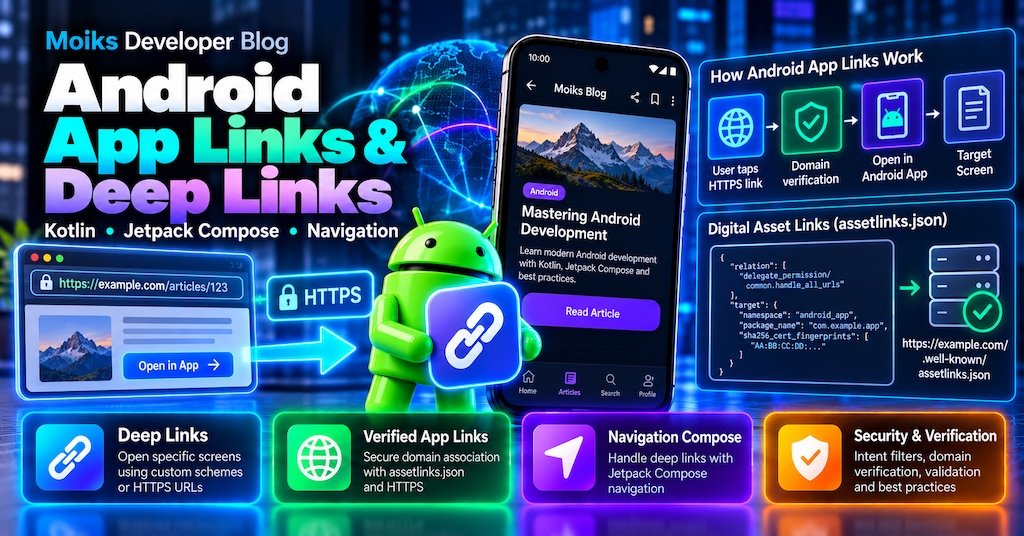
Modern Android applications need to connect seamlessly with websites, browsers, notifications, emails, and other applications.
For example, when a user taps a product URL, the Android application should be able to open the corresponding product screen directly.
Similarly, a notification can take users to a specific article, order, or account page instead of always opening the home screen.
Android supports these experiences through deep links and Android App Links.
Deep links allow applications to respond to specific URI patterns.
Android App Links extend this capability by using verified HTTPS URLs associated with an application.
In this tutorial, we’ll learn how to implement deep links and verified Android App Links using Kotlin, Jetpack Compose, Navigation Compose, AndroidManifest intent filters, and Digital Asset Links.
We’ll also build a practical deep-link navigation demo and discuss important security considerations.
1. What Are Deep Links in Android?
A deep link is a URI that opens a specific destination inside an application.
Instead of launching only the main screen, a deep link can navigate directly to relevant content.
Example
https://example.com/articles/123This URL could open an article detail screen displaying article 123.
Another example:
myapp://products/456This custom URI could open a product detail screen.
Common Use Cases
- Product detail pages.
- News articles.
- Blog posts.
- Order tracking.
- Password reset flows.
- Email verification.
- Marketing campaigns.
- Push notification navigation.
- Shared content.
Deep links improve navigation by reducing the steps required to reach specific content.
2. Types of Android Deep Links
Android applications commonly support three related linking approaches.
| Type | Example | Description |
|---|---|---|
| Custom scheme | myapp://products/123 | Application-defined URI scheme |
| Web deep link | https://example.com/products/123 | HTTP or HTTPS URL handled by an app |
| Verified Android App Link | https://example.com/products/123 | HTTPS URL associated with an app through domain verification |
Custom Scheme
Custom schemes are easy to define but are not globally unique.
Another application may register the same scheme.
Therefore, custom schemes should not be treated as proof of a trusted caller.
Web Deep Link
A web deep link uses an HTTP or HTTPS URL.
Android may offer the user different applications or a browser depending on system settings and link handling.
Verified Android App Link
An Android App Link uses HTTPS and domain verification to associate a website with an Android application.
On supported Android versions and configurations, verified links can open directly in the associated application.
3. Deep Links vs Android App Links
Although they are related, deep links and Android App Links are not identical.
Deep Links
- Can use custom URI schemes.
- Can use HTTP or HTTPS.
- Do not necessarily require domain verification.
- May result in application selection behavior.
Android App Links
- Use HTTP or HTTPS URLs, normally HTTPS for production.
- Require domain association verification.
- Use Digital Asset Links.
- Support direct opening of verified website links.
- Depend on installed application and user link-handling preferences.
Recommendation
For public website URLs that should open in your Android application, prefer verified Android App Links.
Custom schemes may still be appropriate for specific integrations, but they require careful security handling.
4. How Android App Links Work
Android App Links connect a website and an Android application through domain verification.
Simplified Architecture
User Taps HTTPS Link
          |
          v
Android Link Resolver
          |
          v
Verified Domain Association
          |
          v
Android Application
          |
          v
Deep Link Navigation
          |
          v
Target Screen
The website publishes a Digital Asset Links file.
The Android application declares matching URL patterns in its manifest.
Android verifies the relationship between the website and the application’s signing certificate.
When verification and user settings permit, supported links can open directly in the application.
5. Add Navigation Compose Dependency
Navigation Compose provides navigation support for Jetpack Compose applications.
Add the dependency to your app-level build.gradle.kts.
dependencies {

    implementation(
        "androidx.navigation:navigation-compose:<version>"
    )
}
Replace <version> with a compatible stable AndroidX Navigation version.
For the examples below, we’ll use the familiar string-route Navigation Compose APIs.
Newer Navigation versions also provide type-safe navigation APIs.
Both approaches can support deep-link navigation when configured correctly.
6. Create a Basic Navigation Compose Application
Let’s create an application with two screens:
- Home screen.
- Article detail screen.
Main Activity
class MainActivity : ComponentActivity() {

    override fun onCreate(
        savedInstanceState: Bundle?
    ) {
        super.onCreate(savedInstanceState)

        setContent {
            MaterialTheme {
                AppNavigation()
            }
        }
    }
}
Navigation Graph
@Composable
fun AppNavigation() {

    val navController =
        rememberNavController()

    NavHost(
        navController = navController,
        startDestination = "home"
    ) {

        composable("home") {
            HomeScreen(
                onOpenArticle = { articleId ->

                    navController.navigate(
                        "article/$articleId"
                    )
                }
            )
        }

        composable(
            route = "article/{articleId}",
            arguments = listOf(
                navArgument("articleId") {
                    type = NavType.StringType
                }
            )
        ) { backStackEntry ->

            val articleId =
                backStackEntry.arguments
                    ?.getString("articleId")
                    .orEmpty()

            ArticleDetailScreen(
                articleId = articleId
            )
        }
    }
}
How It Works
The navigation graph defines destinations.
The home screen can navigate to an article using its ID.
The detail screen reads the ID from the navigation arguments.
In production, validate the identifier and load the corresponding article through a ViewModel or repository.
7. Create the Home Screen
@Composable
fun HomeScreen(
    onOpenArticle: (String) -> Unit
) {

    Column(
        modifier = Modifier
            .fillMaxSize()
            .padding(24.dp),
        verticalArrangement =
            Arrangement.spacedBy(16.dp)
    ) {

        Text(
            text = "Developer Articles",
            style =
                MaterialTheme.typography
                    .headlineMedium
        )

        Button(
            onClick = {
                onOpenArticle("123")
            }
        ) {
            Text("Open Article 123")
        }

        Button(
            onClick = {
                onOpenArticle("456")
            }
        ) {
            Text("Open Article 456")
        }
    }
}
This screen provides ordinary in-app navigation.
Next, we’ll connect external URLs to the same article destination.
8. Create the Article Detail Screen
@Composable
fun ArticleDetailScreen(
    articleId: String
) {

    Column(
        modifier = Modifier
            .fillMaxSize()
            .padding(24.dp),
        verticalArrangement =
            Arrangement.spacedBy(16.dp)
    ) {

        Text(
            text = "Article Details",
            style =
                MaterialTheme.typography
                    .headlineMedium
        )

        Text(
            text = "Article ID: $articleId"
        )
    }
}
For a production application, this screen would retrieve article content using the validated identifier.
The deep link should identify the requested resource, not contain sensitive authorization information.
9. Configure Deep Links in Navigation Compose
Navigation Compose supports deep-link declarations for destinations.
Let’s map the following URL:
https://example.com/articles/123to the article detail screen.
Example
composable(
    route = "article/{articleId}",
    arguments = listOf(
        navArgument("articleId") {
            type = NavType.StringType
        }
    ),
    deepLinks = listOf(
        navDeepLink {
            uriPattern =
                "https://example.com/articles/{articleId}"
        }
    )
) { backStackEntry ->

    val articleId =
        backStackEntry.arguments
            ?.getString("articleId")
            .orEmpty()

    ArticleDetailScreen(
        articleId = articleId
    )
}
Important Note
Declaring a deep link in Navigation Compose does not automatically make it externally accessible.
The Activity must also declare an appropriate intent filter in the Android manifest.
10. Configure AndroidManifest Intent Filters
Android uses intent filters to determine which applications can handle specific links.
Example
<activity
    android:name=".MainActivity"
    android:exported="true">

    <intent-filter>
        <action
            android:name="android.intent.action.MAIN" />

        <category
            android:name="android.intent.category.LAUNCHER" />
    </intent-filter>

    <intent-filter android:autoVerify="true">

        <action
            android:name="android.intent.action.VIEW" />

        <category
            android:name="android.intent.category.DEFAULT" />

        <category
            android:name="android.intent.category.BROWSABLE" />

        <data
            android:scheme="https"
            android:host="example.com"
            android:pathPrefix="/articles/" />

    </intent-filter>

</activity>
Important Attributes
android
Requests Android App Links domain verification.
android
Defines the URI scheme.
android
Defines the website domain.
android
Restricts matching to paths beginning with the specified prefix.
Security Recommendation
Use the narrowest appropriate URL patterns.
Avoid claiming unrelated website paths unnecessarily.
11. Understand Digital Asset Links
Android App Links use Digital Asset Links to verify the relationship between an Android application and a website.
The website must publish an assetlinks.json file.
Required Location
https://example.com/.well-known/assetlinks.jsonThe file must be accessible over HTTPS.
Example
[
  {
    "relation": [
      "delegate_permission/common.handle_all_urls"
    ],
    "target": {
      "namespace": "android_app",
      "package_name": "com.example.deeplinkdemo",
      "sha256_cert_fingerprints": [
        "REPLACE_WITH_REAL_SHA256_FINGERPRINT"
      ]
    }
  }
]
Important Fields
package_name
The Android application’s package name.
sha256_cert_fingerprints
The SHA-256 fingerprint of the certificate used to sign the application.
relation
Declares the relationship between the website and application.
Important Note
The fingerprint must match the certificate used to sign the installed application.
For applications distributed through Google Play App Signing, the production fingerprint is normally the Play app-signing certificate fingerprint, not necessarily the upload certificate fingerprint.
12. Find Your Android Signing Certificate SHA-256
You can inspect a signing certificate using keytool.
Example
keytool -list -v \
  -keystore your-release-key.jks \
  -alias your-key-alias
Look for the SHA-256 fingerprint.
For Google Play Applications
Open Google Play Console and locate the application’s signing certificate information under App Integrity.
Use the appropriate certificate fingerprint for the installed production build.
Important Consideration
Debug and release builds may use different signing certificates.
If both should verify against the same development domain, the Digital Asset Links file can include the relevant authorized fingerprints.
Avoid exposing private signing keys or keystore passwords.
13. Host assetlinks.json Correctly
The Digital Asset Links file must be available at the exact expected path.
https://example.com/.well-known/assetlinks.jsonHosting Requirements
- Serve the file over HTTPS.
- Return valid JSON.
- Use an appropriate JSON content type.
- Avoid redirects.
- Make the file publicly accessible.
- Ensure the package name and fingerprints are correct.
Important WordPress Consideration
If your website uses WordPress, the file still needs to be available at the domain’s root .well-known path.
For example, a WordPress installation under /blog/ does not change the required Digital Asset Links location.
The correct location remains:
https://example.com/.well-known/assetlinks.jsonnot:
https://example.com/blog/.well-known/assetlinks.json14. Verify Android App Links with ADB
Android provides ADB commands to inspect domain verification.
Request Verification
On supported Android versions:
adb shell pm verify-app-links --re-verify \
  com.example.deeplinkdemo
Inspect Verification State
adb shell pm get-app-links \
  com.example.deeplinkdemo
Expected Result
A correctly configured domain may appear with a verified state.
Important Note
ADB command behavior and available options vary across Android versions.
Domain verification may also be affected by network access, package installation state, and user link-handling preferences.
15. Test Deep Links with ADB
You can simulate opening a link using ADB.
Example
adb shell am start \
  -a android.intent.action.VIEW \
  -c android.intent.category.BROWSABLE \
  -d "https://example.com/articles/123"
Expected Behavior
If the application is installed, the URL matches its configuration, and Android resolves the link to the app, the article detail screen should open.
Testing Checklist
- Test when the app is closed.
- Test when the app is already open.
- Test with an invalid article ID.
- Test with a missing article.
- Test with an unsupported URL.
- Test when the application is not installed.
- Test user link-handling preferences.
16. Handle Deep Links When the App Is Already Running
Deep links can arrive when an Activity already exists.
The behavior depends on Activity launch mode, task state, and intent delivery.
Navigation Compose can handle incoming deep-link intents, but developers should verify behavior for their Activity configuration.
Example
override fun onNewIntent(
    intent: Intent
) {
    super.onNewIntent(intent)

    setIntent(intent)

    // Forward the intent to the navigation
    // controller if your integration requires it.
}
Important Note
The default Navigation Compose deep-link integration handles initial Activity intents.
When using a launch mode that delivers new intents to an existing Activity, such as singleTop, the application may need to explicitly call NavController.handleDeepLink(intent).
Avoid forwarding the same intent multiple times.
Recommended Approach
Keep navigation handling centralized.
Test both cold-start and warm-start deep-link scenarios.
17. Secure Deep Link Parameters
Deep links are externally supplied input.
Applications must never assume that URL parameters are trustworthy.
Example
https://example.com/articles/123An attacker can modify the article ID.
https://example.com/articles/999999The application must validate the requested resource.
Recommended Practices
- Validate parameter formats.
- Enforce length limits.
- Reject unsupported values.
- Handle missing resources safely.
- Avoid executing arbitrary commands from URL parameters.
- Do not expose internal application file paths.
Important Principle
Deep links are navigation requests, not proof of user identity or authorization.
18. Protect Authenticated Destinations
Some deep links point to private content.
For example:
https://example.com/orders/123A user should not gain access to another person’s order simply by changing the ID.
Secure Navigation Flow
Incoming Deep Link
        |
        v
Validate URL
        |
        v
Check Authentication
        |
    +---+---+
    |       |
    v       v
Logged In  Logged Out
    |       |
    v       v
Check      Login Screen
Access         |
    |          v
    |      Resume Request
    v
Open Authorized Content
Important Security Rule
The backend must verify that the authenticated user is authorized to access the requested resource.
Client-side checks improve user experience but are not sufficient for security.
19. Avoid Sensitive Data in Deep Link URLs
URLs may be exposed through:
- Browser history.
- Application logs.
- Analytics systems.
- Shared messages.
- Referrer information.
- Screenshots.
Avoid including passwords, permanent authentication tokens, or other sensitive information in deep-link URLs.
Better Approach
Use short-lived, single-use tokens for workflows such as email verification or password reset.
The backend should validate and consume these tokens securely.
Important Consideration
Even short-lived tokens must be handled carefully.
Do not log them or retain them longer than necessary.
20. Custom Scheme Security Considerations
Custom schemes are not verified through Android App Links domain association.
Example
moiksdemo://articles/123Another application may register the same scheme.
Risks
- Link interception.
- Ambiguous application resolution.
- Untrusted parameters.
- Incorrect assumptions about caller identity.
Recommendation
Prefer verified HTTPS App Links for public web content.
If custom schemes are necessary, treat all incoming data as untrusted.
21. Handle Notification Deep Links
Push notifications often need to open specific application screens.
For example, a notification may represent a new article.
Example URL
https://example.com/articles/123The application can use a compatible Intent to open the associated destination.
Simplified Example
val intent = Intent(
    Intent.ACTION_VIEW,
    Uri.parse(
        "https://example.com/articles/123"
    ),
    context,
    MainActivity::class.java
)

val pendingIntent =
    PendingIntent.getActivity(
        context,
        100,
        intent,
        PendingIntent.FLAG_UPDATE_CURRENT or
            PendingIntent.FLAG_IMMUTABLE
    )
Important Considerations
- Use unique PendingIntent identity where required.
- Choose appropriate PendingIntent flags.
- Validate destination parameters.
- Handle authentication before displaying private content.
- Test navigation back-stack behavior.
For complex notification navigation, consider Navigation’s deep-link and task-stack support.
22. Handle Deep Links from Emails and Browsers
Android App Links can support links shared through multiple channels.
Examples include:
- Email newsletters.
- Website articles.
- Search results.
- Messaging applications.
- Social media posts.
Example
A user receives:
https://example.com/articles/123If the Android application is installed and the domain association is verified, Android may open the corresponding screen directly, subject to user settings and link handling.
Otherwise, the URL should remain useful in a browser.
Best Practice
Always provide a functional web fallback for public App Links.
This ensures that users without the Android application can still access relevant content.
23. Practical Mini Project: Deep Link Navigation Demo
Let’s create a small Android application that supports verified article links.
Project Requirements
The application should:
- Display a home screen.
- Open article details.
- Support internal navigation.
- Handle external HTTPS URLs.
- Verify the associated website domain.
- Validate article identifiers.
- Handle missing content.
- Support cold-start navigation.
Architecture
Browser / Email / Notification
              |
              v
Verified HTTPS URL
              |
              v
Android MainActivity
              |
              v
Navigation Compose
              |
              v
Article Route
              |
              v
ArticleViewModel
              |
              v
ArticleRepository
24. Step 1: Create the Article Model
data class Article(
    val id: String,
    val title: String,
    val description: String
)
This model represents article information.
25. Step 2: Create the Repository
class ArticleRepository {

    private val articles = listOf(
        Article(
            id = "123",
            title = "Kotlin Basics",
            description =
                "Introduction to Kotlin development"
        ),
        Article(
            id = "456",
            title = "Jetpack Compose",
            description =
                "Build modern Android interfaces"
        )
    )

    fun getArticle(
        id: String
    ): Article? {

        return articles.find {
            it.id == id
        }
    }
}
In a production application, the repository could load content from Room or Retrofit.
26. Step 3: Validate Incoming Article IDs
Create a simple validator.
object ArticleIdValidator {

    private val pattern =
        Regex("^[0-9]{1,10}$")

    fun isValid(id: String): Boolean {
        return pattern.matches(id)
    }
}
Why Validation Matters
An externally supplied ID should not be passed into sensitive operations without validation.
The validation rules must match the actual resource identifier format used by the application.
For example, UUID-based IDs require a different validation strategy.
27. Step 4: Create the Article ViewModel
class ArticleViewModel(
    private val repository: ArticleRepository
) : ViewModel() {

    private val _article =
        MutableStateFlow<Article?>(null)

    val article =
        _article.asStateFlow()

    private val _error =
        MutableStateFlow<String?>(null)

    val error =
        _error.asStateFlow()

    fun loadArticle(id: String) {

        if (!ArticleIdValidator.isValid(id)) {

            _article.value = null
            _error.value =
                "Invalid article link"

            return
        }

        val result =
            repository.getArticle(id)

        _article.value = result

        _error.value =
            if (result == null) {
                "Article not found"
            } else {
                null
            }
    }
}
Important Note
The ViewModel requires an appropriate factory or dependency injection configuration when used with constructor parameters.
For example, Hilt can provide the repository.
28. Step 5: Create the Article Detail UI
@Composable
fun ArticleDetailScreen(
    article: Article?,
    error: String?
) {

    Column(
        modifier = Modifier
            .fillMaxSize()
            .padding(24.dp),
        verticalArrangement =
            Arrangement.spacedBy(16.dp)
    ) {

        when {

            error != null -> {
                Text(error)
            }

            article != null -> {

                Text(
                    text = article.title,
                    style =
                        MaterialTheme.typography
                            .headlineMedium
                )

                Text(
                    text = article.description
                )
            }

            else -> {
                CircularProgressIndicator()
            }
        }
    }
}
Important Consideration
This example uses nullable state for simplicity.
A production application should preferably model loading, success, and error states explicitly.
29. Step 6: Connect Deep Links to the ViewModel
In the navigation destination, load the requested article when its ID changes.
composable(
    route = "article/{articleId}",
    arguments = listOf(
        navArgument("articleId") {
            type = NavType.StringType
        }
    ),
    deepLinks = listOf(
        navDeepLink {
            uriPattern =
                "https://example.com/articles/{articleId}"
        }
    )
) { backStackEntry ->

    val articleId =
        backStackEntry.arguments
            ?.getString("articleId")
            .orEmpty()

    val viewModel: ArticleViewModel =
        viewModel()

    LaunchedEffect(articleId) {
        viewModel.loadArticle(articleId)
    }

    val article by viewModel.article
        .collectAsStateWithLifecycle()

    val error by viewModel.error
        .collectAsStateWithLifecycle()

    ArticleDetailScreen(
        article = article,
        error = error
    )
}
Important Implementation Note
The ViewModel construction shown assumes that a compatible ViewModel factory or dependency injection setup is already configured.
For larger projects, prefer a dedicated navigation destination composable and a structured UI state model.
30. Step 7: Test the Complete Flow
Test the following scenarios.
Scenario 1: App Not Running
Open:
https://example.com/articles/123Expected result: The application opens the correct article if link resolution selects the app.
Scenario 2: App Already Running
Open a different article URL.
Expected result: Navigation updates to the requested article.
Scenario 3: Invalid ID
Open:
https://example.com/articles/invalidExpected result: A clear validation error appears.
Scenario 4: Missing Article
Open:
https://example.com/articles/999Expected result: The application displays an article-not-found state.
Scenario 5: App Not Installed
Open the same HTTPS URL.
Expected result: The website displays a usable article page.
Scenario 6: Verification Failure
Remove or misconfigure the Digital Asset Links association in a test environment.
Expected result: Android may open the browser or use another resolution behavior instead of directly opening the app.
31. Common Android Deep Link Mistakes
Mistake 1: Forgetting the Manifest Intent Filter
Navigation Compose deep-link declarations alone do not expose an Activity to external links.
Mistake 2: Using the Wrong Signing Certificate
Production App Links must match the installed application’s signing identity.
Mistake 3: Hosting assetlinks.json in the Wrong Directory
The file belongs under the domain’s root .well-known path.
Mistake 4: Using Redirects for assetlinks.json
Serve the association file directly.
Mistake 5: Claiming Too Many URL Patterns
Keep intent filters appropriately scoped.
Mistake 6: Trusting Incoming Parameters
Validate all externally supplied data.
Mistake 7: Skipping Backend Authorization
A deep link must not bypass resource access checks.
Mistake 8: Ignoring Warm-Start Behavior
Test new intents when the application is already running.
Mistake 9: Including Sensitive Tokens in URLs
Avoid unnecessary exposure of credentials or personal information.
Mistake 10: Forgetting Browser Fallback
Public HTTPS links should remain useful when the app is unavailable.
32. Android App Links Checklist
Before releasing an Android application, verify the following:
- Use HTTPS for production App Links.
- Configure matching manifest intent filters.
- Set
android:autoVerify="true"where appropriate. - Publish
assetlinks.jsonat the correct root path. - Use the correct package name.
- Use the correct app-signing SHA-256 fingerprint.
- Serve the association file without redirects.
- Configure matching Navigation Compose destinations.
- Validate incoming URI parameters.
- Enforce authentication for private destinations.
- Enforce backend authorization.
- Avoid sensitive information in URLs.
- Test cold-start deep links.
- Test warm-start deep links.
- Test unsupported and malformed URLs.
- Test missing content.
- Test app-not-installed behavior.
- Verify domain state with ADB.
- Test on supported Android versions.
- Provide a functional web fallback.
33. Frequently Asked Questions
What is a deep link in Android?
A deep link is a URI that opens a specific destination inside an Android application.
What is an Android App Link?
An Android App Link is an HTTP or HTTPS link associated with an Android application through domain verification.
What is the difference between deep links and App Links?
Deep links are the broader mechanism. Verified Android App Links use website association to establish a trusted relationship between a domain and an application.
What is assetlinks.json?
It is a Digital Asset Links association file used to declare relationships between websites and Android applications.
Where should assetlinks.json be hosted?
At:
https://yourdomain.com/.well-known/assetlinks.json
Do Android App Links require HTTPS?
Production Android App Links rely on website association over HTTPS.
Can Jetpack Compose handle deep links?
Yes. Navigation Compose supports deep-link patterns associated with navigation destinations.
Can a notification open a specific Compose screen?
Yes. Notifications can use appropriately configured Intents or navigation deep links to open destinations.
Are deep links secure by default?
No. Incoming parameters must be validated, and access to private resources must be authorized.
Can Android App Links work without the app installed?
The HTTPS URL can open in a browser when the application is not installed.
How do I test App Links?
Use ADB, domain verification inspection, physical devices, and real browser or messaging-app interactions.
Conclusion
Android deep links and App Links help create seamless navigation between websites, notifications, browsers, and mobile applications.
By combining Kotlin, Jetpack Compose, Navigation Compose, AndroidManifest intent filters, and Digital Asset Links, developers can build reliable URL-based navigation.
Verified Android App Links provide an additional layer of domain association and improve the experience of opening website content directly inside an application.
However, secure implementation requires careful validation, authentication, authorization, and testing.
The most important principle is:
Treat every incoming deep link as untrusted input, even when the domain association is verified.
With a well-designed navigation architecture and proper verification configuration, Android applications can provide smooth, predictable, and secure navigation experiences.
Official References
- Android App Links
- Verify Android App Links
- Create Deep Links to App Content
- Navigation Compose
- Digital Asset Links
- Android Security
Published by Moiks Developer Blog — Practical Android development tutorials using Kotlin, Jetpack Compose, and modern Android architecture.


