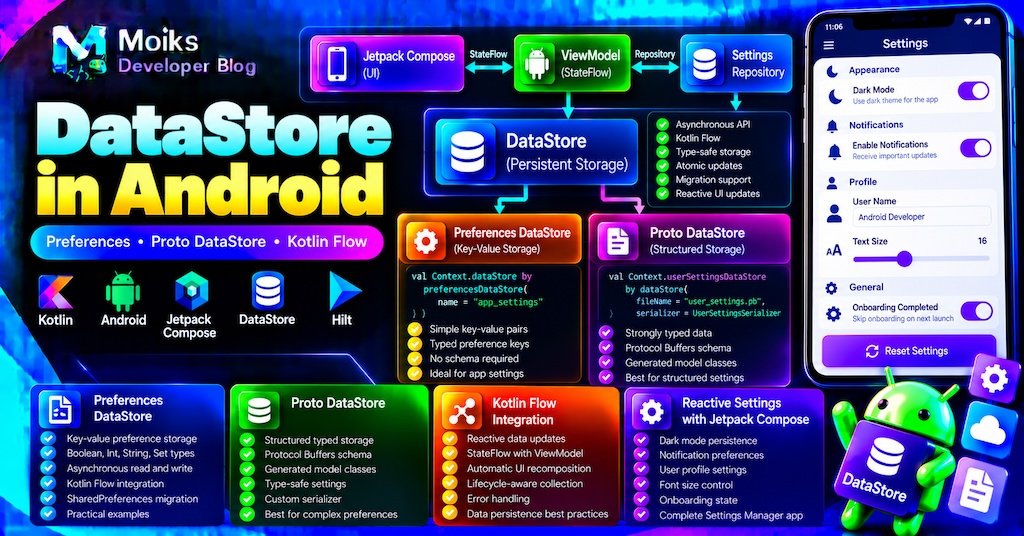
Modern Android applications need to remember user preferences and small amounts of persistent information.
Examples include:
- Dark mode preferences
- Notification settings
- Selected language
- Onboarding completion
- Default sorting options
- User-selected themes
- Application display preferences
- Feature configuration
Traditionally, Android developers used SharedPreferences to store this information.
However, SharedPreferences has limitations, including synchronous APIs and less convenient integration with Kotlin Coroutines and Flow.
Android Jetpack provides DataStore, a modern solution for asynchronous, persistent, and reactive data storage.
In this tutorial, we’ll learn Preferences DataStore and Proto DataStore, understand how they differ, and build a practical Settings Manager application using Kotlin, Hilt, MVVM, StateFlow, and Jetpack Compose.
What You’ll Learn
By the end of this tutorial, you’ll understand:
- What Jetpack DataStore is
- SharedPreferences vs DataStore
- Preferences DataStore
- Proto DataStore
- Kotlin Flow integration
- Reading and writing preferences
- Type-safe preference keys
- Reactive UI updates
- Repository Pattern
- Hilt dependency injection
- MVVM architecture
- StateFlow and stateIn()
- Jetpack Compose settings UI
- Dark mode persistence
- Notification preferences
- Onboarding completion state
- DataStore error handling
- SharedPreferences migration
- DataStore testing
- Performance considerations
- Production best practices
1. What Is DataStore?
DataStore is an Android Jetpack library designed for storing small amounts of application data.
It provides asynchronous APIs and integrates with Kotlin Coroutines and Flow.
DataStore supports two main approaches:
- Preferences DataStore
- Proto DataStore
Preferences DataStore
Stores key-value pairs without requiring a predefined schema.
Proto DataStore
Stores structured, strongly typed objects using Protocol Buffers.
Both approaches support asynchronous reads and transactional updates.
2. Why Use DataStore Instead of SharedPreferences?
SharedPreferences is a familiar Android storage API, but it has limitations.
SharedPreferences Example
val preferences = context.getSharedPreferences(
    "settings",
    Context.MODE_PRIVATE
)

val darkMode = preferences.getBoolean(
    "dark_mode",
    false
)
This reads a preference synchronously.
DataStore Example
val darkModeFlow: Flow<Boolean> =
    context.dataStore.data.map { preferences ->
        preferences[DARK_MODE] ?: false
    }
DataStore exposes a Flow that emits updated values when preferences change.
Comparison
| Feature | SharedPreferences | DataStore |
|---|---|---|
| Asynchronous API | Limited | Yes |
| Kotlin Flow | Manual integration | Built-in |
| Transactional updates | Limited | Yes |
| Structured schema | No | Proto DataStore |
| Coroutine support | Manual | Built-in |
| Reactive Compose integration | Manual | Straightforward |
| Persistent key-value storage | Yes | Yes |
Recommendation
For new Kotlin-based applications, DataStore is generally preferable for small settings and preferences.
For complex relational data, use Room instead.
3. DataStore vs Room
DataStore and Room serve different purposes.
| Requirement | Recommended Storage |
|---|---|
| Dark mode setting | DataStore |
| Notification enabled | DataStore |
| Onboarding completed | DataStore |
| Selected app language | DataStore |
| Thousands of transactions | Room |
| Product catalog | Room |
| Relational records | Room |
| Searchable history | Room |
| Complex database queries | Room |
Important
DataStore is not a replacement for a relational database.
Use it for small persistent data that does not require relational queries or partial record updates.
4. Understanding DataStore Architecture
A typical application architecture looks like this:
        Jetpack Compose
               |
               v
            ViewModel
               |
               v
        SettingsRepository
               |
               v
            DataStore
               |
               v
       Persistent Storage
When a preference changes:
User Changes Setting
         |
         v
      ViewModel
         |
         v
      Repository
         |
         v
    DataStore.edit()
         |
         v
    DataStore Flow
         |
         v
     Compose Recomposition
The UI automatically reacts to stored preference changes.
5. Add DataStore Dependencies
In your app module, add:
dependencies {

    implementation(
        "androidx.datastore:datastore-preferences:<datastore-version>"
    )
}
Replace the version placeholder with a compatible stable release.
For our application, also configure:
- Kotlin
- Jetpack Compose
- Material 3
- Lifecycle ViewModel
- Lifecycle Runtime Compose
- Kotlin Coroutines
- Hilt
- KSP
We’ll use Preferences DataStore for the main project and introduce Proto DataStore afterward.
6. Create a Preferences DataStore Instance
The recommended Kotlin property-delegate approach is:
val Context.dataStore by preferencesDataStore(
    name = "app_settings"
)
Required imports:
import android.content.Context
import androidx.datastore.preferences.preferencesDataStore
Important
Declare the delegate once at the top level of a Kotlin file.
Do not create multiple DataStore instances for the same file within one process.
7. Understanding Preference Keys
Preferences DataStore uses typed keys.
Examples include:
val DARK_MODE = booleanPreferencesKey(
    "dark_mode"
)

val USER_NAME = stringPreferencesKey(
    "user_name"
)

val FONT_SIZE = intPreferencesKey(
    "font_size"
)

val LAST_SYNC = longPreferencesKey(
    "last_sync"
)
Supported Preference Types
Preferences DataStore supports common types such as:
- Boolean
- Int
- Long
- Float
- Double
- String
- Set of strings
- Byte arrays
Recommendation
Keep preference keys centralized to avoid inconsistent names across the application.
8. Reading Preferences with Flow
DataStore exposes preferences through Flow.
Example
val darkModeFlow: Flow<Boolean> =
    context.dataStore.data.map { preferences ->

        preferences[DARK_MODE] ?: false
    }
Explanation
- DataStore reads stored preferences.
- map() extracts the requested value.
- The default value is used when the key is absent.
- The Flow emits updated values when stored data changes.
This makes DataStore especially useful with Jetpack Compose.
9. Writing Preferences
Use edit() to update Preferences DataStore.
Example
suspend fun setDarkMode(
    enabled: Boolean
) {

    context.dataStore.edit { preferences ->

        preferences[DARK_MODE] = enabled
    }
}
Explanation
edit() performs an atomic read-modify-write transaction.
The updated value is persisted and subsequently emitted through the DataStore Flow.
10. Removing Preferences
A stored preference can be removed.
Example
suspend fun removeDarkMode() {

    context.dataStore.edit { preferences ->

        preferences.remove(DARK_MODE)
    }
}
Clear All Preferences
suspend fun clearSettings() {

    context.dataStore.edit { preferences ->

        preferences.clear()
    }
}
Important
Clearing preferences removes all values stored in that DataStore.
Use this operation carefully.
Practical Mini-Project: Settings Manager with DataStore and Jetpack Compose
Let’s build a modern Settings Manager application.
Features
- Persistent dark mode
- Notification preference
- Username setting
- Font size preference
- Onboarding completion state
- Reset settings
- Reactive Compose UI
- Hilt integration
- MVVM architecture
- StateFlow-based UI state
Technology Stack
- Kotlin
- Jetpack Compose
- Material 3
- Preferences DataStore
- Kotlin Flow
- StateFlow
- Hilt
- ViewModel
11. Recommended Project Structure
com.example.datastoresettings/
│
├── SettingsApplication.kt
├── MainActivity.kt
│
├── data/
│   ├── AppDataStore.kt
│   ├── SettingsPreferences.kt
│   └── SettingsRepositoryImpl.kt
│
├── domain/
│   ├── model/
│   │   └── AppSettings.kt
│   │
│   └── repository/
│       └── SettingsRepository.kt
│
├── di/
│   └── SettingsModule.kt
│
└── presentation/
    ├── SettingsViewModel.kt
    └── SettingsScreen.kt
12. Step 1 — Create Application Class
File: SettingsApplication.kt
package com.example.datastoresettings

import android.app.Application
import dagger.hilt.android.HiltAndroidApp

@HiltAndroidApp
class SettingsApplication : Application()
Register it in AndroidManifest.xml:
<application
    android:name=".SettingsApplication"
    ... >
</application>
Keep the remaining application configuration generated by Android Studio.
13. Step 2 — Create DataStore Delegate
File: data/AppDataStore.kt
package com.example.datastoresettings.data

import android.content.Context

import androidx.datastore.preferences.preferencesDataStore

val Context.appDataStore by preferencesDataStore(
    name = "app_settings"
)
Explanation
This creates one Preferences DataStore delegate for the application settings file.
14. Step 3 — Define Preference Keys
File: data/SettingsPreferences.kt
package com.example.datastoresettings.data

import androidx.datastore.preferences.core.booleanPreferencesKey
import androidx.datastore.preferences.core.intPreferencesKey
import androidx.datastore.preferences.core.stringPreferencesKey

object SettingsPreferences {

    val DARK_MODE = booleanPreferencesKey(
        "dark_mode"
    )

    val NOTIFICATIONS_ENABLED = booleanPreferencesKey(
        "notifications_enabled"
    )

    val USER_NAME = stringPreferencesKey(
        "user_name"
    )

    val FONT_SIZE = intPreferencesKey(
        "font_size"
    )

    val ONBOARDING_COMPLETED = booleanPreferencesKey(
        "onboarding_completed"
    )
}
Explanation
All preference keys are centralized in one object.
This improves maintainability.
15. Step 4 — Create AppSettings Model
File: domain/model/AppSettings.kt
package com.example.datastoresettings.domain.model

data class AppSettings(
    val darkMode: Boolean = false,
    val notificationsEnabled: Boolean = true,
    val userName: String = "",
    val fontSize: Int = 16,
    val onboardingCompleted: Boolean = false
)
Explanation
AppSettings represents the application’s stored preferences as one immutable model.
16. Step 5 — Create Repository Interface
File: domain/repository/SettingsRepository.kt
package com.example.datastoresettings.domain.repository

import com.example.datastoresettings.domain.model.AppSettings

import kotlinx.coroutines.flow.Flow

interface SettingsRepository {

    val settings: Flow<AppSettings>

    suspend fun setDarkMode(enabled: Boolean)

    suspend fun setNotificationsEnabled(enabled: Boolean)

    suspend fun setUserName(name: String)

    suspend fun setFontSize(size: Int)

    suspend fun setOnboardingCompleted(completed: Boolean)

    suspend fun resetSettings()
}
Explanation
The repository defines the operations available to the rest of the application.
The presentation layer does not need to know how DataStore works internally.
17. Step 6 — Implement SettingsRepository
File: data/SettingsRepositoryImpl.kt
package com.example.datastoresettings.data

import android.content.Context

import androidx.datastore.preferences.core.edit

import com.example.datastoresettings.domain.model.AppSettings
import com.example.datastoresettings.domain.repository.SettingsRepository

import dagger.hilt.android.qualifiers.ApplicationContext

import javax.inject.Inject

import kotlinx.coroutines.flow.Flow
import kotlinx.coroutines.flow.catch
import kotlinx.coroutines.flow.map

import java.io.IOException

class SettingsRepositoryImpl @Inject constructor(
    @ApplicationContext private val context: Context
) : SettingsRepository {

    override val settings: Flow<AppSettings> =
        context.appDataStore.data
            .catch { exception ->

                if (exception is IOException) {

                    emit(
                        androidx.datastore.preferences.core.emptyPreferences()
                    )

                } else {

                    throw exception
                }
            }
            .map { preferences ->

                AppSettings(
                    darkMode = preferences[
                        SettingsPreferences.DARK_MODE
                    ] ?: false,

                    notificationsEnabled = preferences[
                        SettingsPreferences.NOTIFICATIONS_ENABLED
                    ] ?: true,

                    userName = preferences[
                        SettingsPreferences.USER_NAME
                    ] ?: "",

                    fontSize = preferences[
                        SettingsPreferences.FONT_SIZE
                    ] ?: 16,

                    onboardingCompleted = preferences[
                        SettingsPreferences.ONBOARDING_COMPLETED
                    ] ?: false
                )
            }

    override suspend fun setDarkMode(
        enabled: Boolean
    ) {

        context.appDataStore.edit { preferences ->

            preferences[
                SettingsPreferences.DARK_MODE
            ] = enabled
        }
    }

    override suspend fun setNotificationsEnabled(
        enabled: Boolean
    ) {

        context.appDataStore.edit { preferences ->

            preferences[
                SettingsPreferences.NOTIFICATIONS_ENABLED
            ] = enabled
        }
    }

    override suspend fun setUserName(
        name: String
    ) {

        context.appDataStore.edit { preferences ->

            preferences[
                SettingsPreferences.USER_NAME
            ] = name
        }
    }

    override suspend fun setFontSize(
        size: Int
    ) {

        context.appDataStore.edit { preferences ->

            preferences[
                SettingsPreferences.FONT_SIZE
            ] = size.coerceIn(12, 24)
        }
    }

    override suspend fun setOnboardingCompleted(
        completed: Boolean
    ) {

        context.appDataStore.edit { preferences ->

            preferences[
                SettingsPreferences.ONBOARDING_COMPLETED
            ] = completed
        }
    }

    override suspend fun resetSettings() {

        context.appDataStore.edit { preferences ->

            preferences.clear()
        }
    }
}
Explanation
The repository:
- Reads stored preferences.
- Converts them into AppSettings.
- Exposes a reactive Flow.
- Updates values using edit().
- Handles recoverable read I/O errors.
- Supports resetting settings.
Important
In production, log recoverable read errors and surface an appropriate error state when needed.
Emitting default preferences after an IOException does not repair a damaged storage file.
18. Step 7 — Create Hilt Repository Module
File: di/SettingsModule.kt
package com.example.datastoresettings.di

import com.example.datastoresettings.data.SettingsRepositoryImpl
import com.example.datastoresettings.domain.repository.SettingsRepository

import dagger.Binds
import dagger.Module
import dagger.hilt.InstallIn
import dagger.hilt.components.SingletonComponent

import javax.inject.Singleton

@Module
@InstallIn(SingletonComponent::class)
abstract class SettingsModule {

    @Binds
    @Singleton
    abstract fun bindSettingsRepository(
        implementation: SettingsRepositoryImpl
    ): SettingsRepository
}
Explanation
Hilt injects SettingsRepositoryImpl whenever SettingsRepository is requested.
19. Step 8 — Create SettingsViewModel
File: presentation/SettingsViewModel.kt
package com.example.datastoresettings.presentation

import androidx.lifecycle.ViewModel
import androidx.lifecycle.viewModelScope

import com.example.datastoresettings.domain.model.AppSettings
import com.example.datastoresettings.domain.repository.SettingsRepository

import dagger.hilt.android.lifecycle.HiltViewModel

import javax.inject.Inject

import kotlinx.coroutines.flow.SharingStarted
import kotlinx.coroutines.flow.StateFlow
import kotlinx.coroutines.flow.stateIn
import kotlinx.coroutines.launch

@HiltViewModel
class SettingsViewModel @Inject constructor(
    private val repository: SettingsRepository
) : ViewModel() {

    val settings: StateFlow<AppSettings> =
        repository.settings.stateIn(
            scope = viewModelScope,
            started = SharingStarted.WhileSubscribed(5000),
            initialValue = AppSettings()
        )

    fun setDarkMode(enabled: Boolean) {

        viewModelScope.launch {
            repository.setDarkMode(enabled)
        }
    }

    fun setNotificationsEnabled(enabled: Boolean) {

        viewModelScope.launch {
            repository.setNotificationsEnabled(enabled)
        }
    }

    fun setUserName(name: String) {

        viewModelScope.launch {
            repository.setUserName(name)
        }
    }

    fun setFontSize(size: Int) {

        viewModelScope.launch {
            repository.setFontSize(size)
        }
    }

    fun completeOnboarding() {

        viewModelScope.launch {
            repository.setOnboardingCompleted(true)
        }
    }

    fun resetSettings() {

        viewModelScope.launch {
            repository.resetSettings()
        }
    }
}
Explanation
The ViewModel converts the repository Flow into StateFlow.
It exposes functions for updating preferences.
Important
This example uses AppSettings() as its initial state.
A production application may introduce an explicit loading state to avoid briefly displaying default settings before persisted preferences are loaded.
20. Step 9 — Create SettingsScreen
File: presentation/SettingsScreen.kt
package com.example.datastoresettings.presentation

import androidx.compose.foundation.layout.*
import androidx.compose.foundation.rememberScrollState
import androidx.compose.foundation.verticalScroll

import androidx.compose.material3.*

import androidx.compose.runtime.Composable
import androidx.compose.runtime.getValue

import androidx.compose.ui.Modifier
import androidx.compose.ui.unit.dp

import androidx.lifecycle.compose.collectAsStateWithLifecycle

@OptIn(ExperimentalMaterial3Api::class)
@Composable
fun SettingsScreen(
    viewModel: SettingsViewModel
) {

    val settings by viewModel.settings
        .collectAsStateWithLifecycle()

    Scaffold(
        topBar = {

            TopAppBar(
                title = {
                    Text("App Settings")
                }
            )
        }
    ) { paddingValues ->

        Column(
            modifier = Modifier
                .fillMaxSize()
                .padding(paddingValues)
                .verticalScroll(rememberScrollState())
                .padding(20.dp),
            verticalArrangement =
                Arrangement.spacedBy(20.dp)
        ) {

            Text(
                text = "Appearance",
                style = MaterialTheme.typography.titleLarge
            )

            Row(
                modifier = Modifier.fillMaxWidth(),
                horizontalArrangement =
                    Arrangement.SpaceBetween
            ) {

                Text("Dark Mode")

                Switch(
                    checked = settings.darkMode,
                    onCheckedChange =
                        viewModel::setDarkMode
                )
            }

            HorizontalDivider()

            Text(
                text = "Notifications",
                style = MaterialTheme.typography.titleLarge
            )

            Row(
                modifier = Modifier.fillMaxWidth(),
                horizontalArrangement =
                    Arrangement.SpaceBetween
            ) {

                Text("Enable Notifications")

                Switch(
                    checked = settings.notificationsEnabled,
                    onCheckedChange =
                        viewModel::setNotificationsEnabled
                )
            }

            HorizontalDivider()

            Text(
                text = "Profile",
                style = MaterialTheme.typography.titleLarge
            )

            OutlinedTextField(
                value = settings.userName,
                onValueChange = viewModel::setUserName,
                label = {
                    Text("User Name")
                },
                modifier = Modifier.fillMaxWidth()
            )

            HorizontalDivider()

            Text(
                text = "Font Size: ${settings.fontSize}"
            )

            Slider(
                value = settings.fontSize.toFloat(),
                onValueChange = {
                    viewModel.setFontSize(
                        it.toInt()
                    )
                },
                valueRange = 12f..24f,
                steps = 11
            )

            HorizontalDivider()

            Text(
                text = if (settings.onboardingCompleted) {
                    "Onboarding Completed"
                } else {
                    "Onboarding Not Completed"
                }
            )

            Button(
                onClick = viewModel::completeOnboarding,
                modifier = Modifier.fillMaxWidth()
            ) {

                Text("Complete Onboarding")
            }

            OutlinedButton(
                onClick = viewModel::resetSettings,
                modifier = Modifier.fillMaxWidth()
            ) {

                Text("Reset Settings")
            }
        }
    }
}
Explanation
The screen displays preferences from StateFlow.
When a user changes a setting:
- The UI calls the ViewModel.
- The ViewModel updates the repository.
- DataStore persists the new value.
- DataStore emits updated preferences.
- StateFlow updates.
- Compose recomposes the affected UI.
Production Note
For text fields and sliders, avoid writing to DataStore on every keystroke or drag movement when unnecessary.
Consider keeping temporary editing state and saving on focus loss, confirmation, or after a debounce.
21. Step 10 — Apply the Stored Theme
To make dark mode affect the entire application, observe the preference above the screen.
File: MainActivity.kt
package com.example.datastoresettings

import android.os.Bundle

import androidx.activity.ComponentActivity
import androidx.activity.compose.setContent

import androidx.compose.material3.MaterialTheme
import androidx.compose.material3.darkColorScheme
import androidx.compose.material3.lightColorScheme

import androidx.lifecycle.compose.collectAsStateWithLifecycle
import androidx.lifecycle.viewmodel.compose.viewModel

import com.example.datastoresettings.presentation.SettingsScreen
import com.example.datastoresettings.presentation.SettingsViewModel

import dagger.hilt.android.AndroidEntryPoint

@AndroidEntryPoint
class MainActivity : ComponentActivity() {

    override fun onCreate(
        savedInstanceState: Bundle?
    ) {

        super.onCreate(savedInstanceState)

        setContent {

            val settingsViewModel: SettingsViewModel =
                viewModel()

            val settings by settingsViewModel.settings
                .collectAsStateWithLifecycle()

            MaterialTheme(
                colorScheme = if (settings.darkMode) {
                    darkColorScheme()
                } else {
                    lightColorScheme()
                }
            ) {

                SettingsScreen(
                    viewModel = settingsViewModel
                )
            }
        }
    }
}
Explanation
The entire Compose UI reacts when dark mode changes.
The preference remains stored after the application closes.
Important
For a production application, consider a three-state theme setting:
- Follow System
- Light
- Dark
Also consider an initial loading state to prevent a theme flash during startup.
22. Expected Application UI
+--------------------------------+
|          App Settings          |
|                                |
| Appearance                     |
|                                |
| Dark Mode                [ON]  |
|                                |
| ------------------------------ |
|                                |
| Notifications                  |
|                                |
| Enable Notifications     [ON]  |
|                                |
| ------------------------------ |
|                                |
| Profile                        |
|                                |
| [ User Name                 ]  |
|                                |
| ------------------------------ |
|                                |
| Font Size: 16                  |
|                                |
| [-------●----------------]     |
|                                |
| ------------------------------ |
|                                |
| Onboarding Not Completed       |
|                                |
|    [ Complete Onboarding ]     |
|                                |
|       [ Reset Settings ]       |
|                                |
+--------------------------------+
All settings persist through DataStore.
Advanced DataStore: Proto DataStore
Preferences DataStore is ideal for simple key-value settings.
For structured and strongly typed settings, Proto DataStore is another option.
23. What Is Proto DataStore?
Proto DataStore stores structured objects using Protocol Buffers.
Unlike Preferences DataStore, it requires a predefined schema.
Benefits
- Strongly typed data
- Defined schema
- Generated model classes
- Structured settings
- Better organization for complex preferences
Example Use Cases
- User configuration
- Application preferences
- Feature settings
- Structured onboarding configuration
24. Preferences DataStore vs Proto DataStore
| Feature | Preferences DataStore | Proto DataStore |
|---|---|---|
| Storage model | Key-value pairs | Typed objects |
| Schema required | No | Yes |
| Protocol Buffers | No | Yes |
| Generated classes | No | Yes |
| Best for | Simple settings | Structured settings |
| Flow support | Yes | Yes |
| Transactional updates | Yes | Yes |
Recommendation
Use Preferences DataStore when settings are simple.
Use Proto DataStore when a structured schema provides meaningful benefits.
25. Add Proto DataStore Dependencies
dependencies {

    implementation(
        "androidx.datastore:datastore:<datastore-version>"
    )
}
You also need the Protocol Buffers Gradle plugin and a compatible protobuf runtime.
For a lightweight Android application, protobuf-javalite is commonly used.
26. Create a Proto Schema
Create:
app/src/main/proto/user_settings.protoAdd:
syntax = "proto3";

option java_package =
    "com.example.datastoresettings.proto";

option java_multiple_files = true;

message UserSettings {

    bool dark_mode = 1;

    bool notifications_enabled = 2;

    string user_name = 3;

    int32 font_size = 4;
}
Explanation
The schema defines the structure of the stored object.
The Protocol Buffers compiler generates Kotlin-compatible Java classes.
Important
Protocol Buffers default values differ from custom application defaults.
For example, a missing boolean field defaults to false.
If your application requires notifications enabled by default, account for that in your serializer, schema design, or initialization strategy.
27. Create Proto Serializer
Proto DataStore requires a Serializer.
object UserSettingsSerializer :
    Serializer<UserSettings> {

    override val defaultValue: UserSettings =
        UserSettings.getDefaultInstance()

    override suspend fun readFrom(
        input: InputStream
    ): UserSettings {

        return try {

            UserSettings.parseFrom(input)

        } catch (exception: InvalidProtocolBufferException) {

            throw CorruptionException(
                "Cannot read user settings",
                exception
            )
        }
    }

    override suspend fun writeTo(
        t: UserSettings,
        output: OutputStream
    ) {

        t.writeTo(output)
    }
}
Explanation
The serializer converts the stored Protocol Buffers data into UserSettings objects and writes updated objects back to storage.
28. Create Proto DataStore
Declare the Proto DataStore delegate:
val Context.userSettingsDataStore:
    DataStore<UserSettings> by dataStore(
        fileName = "user_settings.pb",
        serializer = UserSettingsSerializer
    )
Important
Use a single DataStore instance per file within the same process.
Preferences DataStore and Proto DataStore should use separate storage files.
29. Reading Proto DataStore
Proto DataStore exposes a Flow of typed objects.
Example
val settingsFlow: Flow<UserSettings> =
    context.userSettingsDataStore.data
To extract a specific field:
val darkModeFlow =
    context.userSettingsDataStore.data.map {
        it.darkMode
    }
30. Updating Proto DataStore
Use updateData().
Example
suspend fun setDarkMode(
    enabled: Boolean
) {

    context.userSettingsDataStore.updateData {
        currentSettings ->

        currentSettings.toBuilder()
            .setDarkMode(enabled)
            .build()
    }
}
Explanation
updateData() performs a transactional update.
The transformation receives the current object and returns the updated object.
31. Migrating from SharedPreferences
Existing applications may already store settings in SharedPreferences.
DataStore provides migration support.
Example
val Context.dataStore by preferencesDataStore(
    name = "app_settings",
    produceMigrations = { context ->

        listOf(
            SharedPreferencesMigration(
                context,
                "legacy_settings"
            )
        )
    }
)
Explanation
The migration reads values from the existing SharedPreferences file.
Important
The migration configuration must be associated with the DataStore instance from the beginning.
Do not declare a second DataStore delegate for the same file.
For an existing application, integrate the migration into the original delegate declaration.
32. Handling DataStore Errors
DataStore reads can fail because of I/O problems or data corruption.
Example
val settingsFlow =
    context.appDataStore.data
        .catch { exception ->

            if (exception is IOException) {

                emit(emptyPreferences())

            } else {

                throw exception
            }
        }
Explanation
IOException can be handled by emitting fallback preferences.
Unexpected exceptions should generally propagate rather than being silently ignored.
Recommendation
In production:
- Log failures
- Avoid hiding persistent storage problems
- Show appropriate recovery UI
- Use corruption handlers only when data loss or reset is an acceptable recovery policy
33. DataStore and StateFlow
DataStore works naturally with StateFlow.
Example
val settings = repository.settings
    .stateIn(
        scope = viewModelScope,
        started = SharingStarted.WhileSubscribed(5000),
        initialValue = AppSettings()
    )
Explanation
stateIn() converts a Flow into a StateFlow.
StateFlow provides the latest value to Compose collectors.
34. DataStore and Jetpack Compose
Compose can collect DataStore-backed StateFlow using:
val settings by viewModel.settings
    .collectAsStateWithLifecycle()
Benefits
- Lifecycle-aware collection
- Automatic UI updates
- Reduced manual observer management
- Unidirectional data flow
- Separation between storage and presentation
Recommendation
Collect DataStore through a ViewModel or repository rather than directly coupling every composable to Context and storage APIs.
35. DataStore Performance Best Practices
Avoid Multiple Instances
Use one DataStore instance per file.
Avoid Excessive Writes
Do not write preferences unnecessarily.
Keep Data Small
DataStore is designed for small settings, not large datasets.
Use Flow
Observe stored data reactively.
Avoid Blocking Reads
Do not use runBlocking on the main thread to retrieve settings during normal UI operations.
Keep Business Logic Separate
Use repositories or use cases to encapsulate storage operations.
Use Room for Complex Data
Do not store large collections of relational records in DataStore.
36. Testing Preferences DataStore
DataStore repositories can be tested with temporary storage files.
Recommended Test Scenarios
- Default settings
- Dark mode enabled
- Notifications disabled
- Username updated
- Font size updated
- Onboarding completed
- Reset settings
- Persistence across DataStore recreation
- Read failure handling
Example Test Logic
@Test
fun darkModePreferenceIsPersisted() = runTest {

    repository.setDarkMode(true)

    val settings =
        repository.settings.first()

    assertTrue(settings.darkMode)
}
Important
The test must initialize a repository with an isolated test DataStore instance.
Avoid sharing production preference files between tests.
37. Testing Proto DataStore
Proto DataStore tests should verify:
- Default schema values
- Reading stored objects
- Updating individual fields
- Preserving unrelated fields
- Handling malformed data
- Schema compatibility
- Persistence across instances
Recommendation
Use temporary files and deterministic coroutine test scopes.
38. Common DataStore Mistakes
Mistake 1: Creating Multiple DataStore Instances
Avoid multiple active instances for the same file.
Mistake 2: Using DataStore for Large Datasets
Use Room for large or relational data.
Mistake 3: Blocking the Main Thread
Prefer asynchronous Flow and suspend APIs.
Mistake 4: Ignoring Read Errors
Handle expected I/O errors and surface persistent failures appropriately.
Mistake 5: Writing on Every UI Event
Debounce or batch writes when appropriate.
Mistake 6: Mixing Storage Logic with UI
Use a repository layer.
Mistake 7: Using Incorrect Default Values
Define sensible defaults consistently.
Mistake 8: Forgetting Migration
Migrate existing SharedPreferences values when upgrading an established app.
Mistake 9: Storing Secrets as Plain Preferences
DataStore does not automatically encrypt values.
Use an appropriate security architecture for sensitive data.
Mistake 10: Ignoring Initial Loading State
Avoid showing incorrect settings while persisted values are loading.
39. Production Best Practices
Follow these recommendations:
- Prefer DataStore for small persistent settings.
- Use Preferences DataStore for simple key-value storage.
- Use Proto DataStore for structured typed settings.
- Maintain one DataStore instance per file.
- Expose settings through Flow.
- Use Repository Pattern.
- Integrate Hilt for dependency injection.
- Convert Flow to StateFlow in ViewModel when appropriate.
- Use collectAsStateWithLifecycle() in Compose.
- Handle read and write errors.
- Avoid unnecessary writes.
- Use meaningful default values.
- Support SharedPreferences migration.
- Test persistence and reset behavior.
- Keep sensitive information out of unencrypted storage.
- Use Room for complex datasets.
- Keep UI state immutable.
- Support lifecycle-aware collection.
- Design settings screens for both light and dark themes.
40. DataStore Quick Reference
| API / Component | Purpose |
|---|---|
| Preferences DataStore | Key-value persistent storage |
| Proto DataStore | Structured typed storage |
| preferencesDataStore() | Creates Preferences DataStore delegate |
| dataStore() | Creates typed DataStore delegate |
| booleanPreferencesKey() | Boolean preference key |
| stringPreferencesKey() | String preference key |
| intPreferencesKey() | Integer preference key |
| DataStore.data | Reactive Flow of stored data |
| edit() | Transactional Preferences update |
| updateData() | Transactional typed DataStore update |
| Flow.map() | Transforms stored data |
| Flow.catch() | Handles read errors |
| stateIn() | Converts Flow to StateFlow |
| collectAsStateWithLifecycle() | Lifecycle-aware Compose collection |
| SharedPreferencesMigration | Migrates legacy preferences |
| Serializer | Reads and writes Proto objects |
| CorruptionException | Represents corrupted serialized data |
41. Practical Exercises
Exercise 1: Dark Mode
Store a Boolean dark mode preference.
Exercise 2: Notifications
Create a persistent notification toggle.
Exercise 3: Username
Store a user-entered display name.
Exercise 4: Font Size
Persist a selected font size.
Exercise 5: Onboarding
Save onboarding completion state.
Exercise 6: Reset Settings
Clear stored preferences.
Exercise 7: Hilt Integration
Inject SettingsRepository into ViewModel.
Exercise 8: StateFlow
Convert the settings Flow into StateFlow.
Exercise 9: Proto DataStore
Create a typed UserSettings schema.
Exercise 10: Migration
Migrate preferences from SharedPreferences to DataStore.
42. Frequently Asked Questions
What is DataStore in Android?
DataStore is an Android Jetpack library for asynchronous persistent storage of small amounts of data.
What is Preferences DataStore?
Preferences DataStore stores typed key-value preferences without requiring a schema.
What is Proto DataStore?
Proto DataStore stores structured, strongly typed objects using Protocol Buffers.
Is DataStore better than SharedPreferences?
For new Kotlin-based applications, DataStore is generally preferable because it supports coroutines, Flow, and transactional updates.
Does DataStore support Jetpack Compose?
Yes. DataStore integrates naturally with Flow, ViewModel, StateFlow, and Compose.
Can DataStore store dark mode preferences?
Yes. Dark mode is a common DataStore use case.
Does DataStore support Hilt?
Yes. A DataStore instance or repository can be provided through Hilt.
Can DataStore replace Room?
No. Room is more suitable for relational data and complex queries.
Does DataStore support migration?
Yes. DataStore supports migration from SharedPreferences.
Does DataStore automatically encrypt data?
No. DataStore does not automatically provide encryption.
Can DataStore store large files?
No. Use files, Room, or another suitable storage mechanism.
Is DataStore suitable for production?
Yes. DataStore is designed for persistent application settings and small structured data.
What We’ve Learned
In this tutorial, we explored:
- DataStore fundamentals
- SharedPreferences vs DataStore
- Preferences DataStore
- Proto DataStore
- Kotlin Flow integration
- Reading and writing preferences
- Preference keys
- Repository Pattern
- Hilt integration
- MVVM architecture
- StateFlow
- Jetpack Compose settings UI
- Dark mode persistence
- Notification preferences
- Username storage
- Font size preferences
- Onboarding state
- Reset settings
- Protocol Buffers schema
- Proto serializer
- SharedPreferences migration
- Error handling
- Testing
- Performance optimization
- Production best practices
DataStore provides a modern foundation for managing persistent application preferences in Android.
By combining DataStore with Kotlin, Flow, Hilt, ViewModel, and Jetpack Compose, developers can build reactive, maintainable, and lifecycle-aware settings screens.
The key principle is simple:
Use DataStore for small persistent settings, expose values through Flow, and keep storage logic separate from the user interface.
What’s Next?
In our next tutorial:
Article 51 — Android App Startup Optimization with Kotlin & Jetpack Compose: Baseline Profiles, Lazy Initialization & Performance
You’ll learn:
- Android app startup fundamentals
- Cold, warm, and hot startup
- Time to Initial Display
- Time to Full Display
- Measuring startup performance
- Macrobenchmark
- Baseline Profiles
- Startup Profiles
- Lazy initialization
- Dependency initialization optimization
- Jetpack App Startup
- Main-thread performance
- Compose startup optimization
- Production profiling and best practices
Happy Coding!
Continue learning modern Android development with Moiks Developer Blog.


