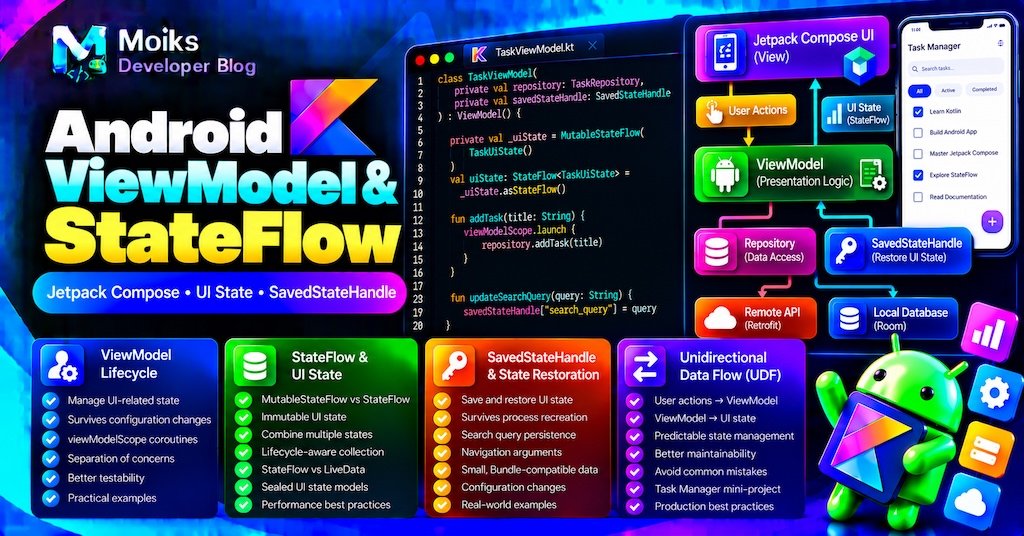
Managing UI state is one of the most important responsibilities in modern Android development.
A simple Android application may contain only a few buttons and text fields. However, production applications often manage much more complex behavior.
For example:
- Loading data from APIs
- Displaying database records
- Handling user input
- Managing search and filters
- Displaying errors
- Updating lists
- Preserving state during configuration changes
- Restoring important information after process recreation
- Handling asynchronous operations
Without proper state management, applications can become difficult to maintain and debug.
Modern Android development provides powerful tools for solving these problems.
ViewModel, Kotlin StateFlow, SavedStateHandle, and Jetpack Compose work together to create predictable and lifecycle-aware UI state management.
In this tutorial, we’ll explore these technologies and build a practical Task Manager application using MVVM architecture.
What You’ll Learn
By the end of this tutorial, you’ll understand:
- What UI state means in Android
- What Android ViewModel is
- ViewModel lifecycle
- StateFlow and MutableStateFlow
- StateFlow vs LiveData
- StateFlow vs SharedFlow
- Immutable UI state
- State hoisting
- Unidirectional Data Flow
- Lifecycle-aware Flow collection
- SavedStateHandle
- Configuration changes and process death
- Loading, success, and error states
- One-time UI events
- StateFlow with repositories
- ViewModel unit testing
- Production best practices
Let’s begin!
1. What Is UI State in Android?
UI state represents the information required to render a screen.
For example, consider a shopping application.
Its UI state might contain:
- Product list
- Loading status
- Selected category
- Search query
- Error message
- Refresh status
Example
data class ProductUiState(
    val products: List<Product> = emptyList(),
    val isLoading: Boolean = false,
    val searchQuery: String = "",
    val errorMessage: String? = null
)
Explanation
The UI state describes what the screen should display.
When the state changes, Jetpack Compose can automatically update the relevant UI.
Important Principle
The UI should be a function of its state.
UI = Render(State)Instead of manually updating individual UI elements, developers update the state and let Compose render the result.
2. What Is Android ViewModel?
ViewModel is an Android Jetpack component designed to manage UI-related state and presentation logic.
It is commonly used with Activities, Fragments, and Jetpack Compose.
Main Responsibilities
- Hold screen-level UI state
- Coordinate repository operations
- Handle user actions
- Execute coroutines
- Transform application data into presentation state
- Survive configuration changes while its owner remains active
Basic Example
class CounterViewModel : ViewModel() {

    private val _count = MutableStateFlow(0)

    val count: StateFlow<Int> =
        _count.asStateFlow()

    fun increment() {
        _count.update { it + 1 }
    }
}
Explanation
The ViewModel owns the mutable state.
The UI observes a read-only StateFlow.
When increment() is called, the state changes.
Jetpack Compose can then recompose the relevant UI.
3. Understanding the ViewModel Lifecycle
ViewModel instances are retained across configuration changes while their ViewModelStoreOwner remains active.
Example
Activity Created
       |
       v
ViewModel Created
       |
       v
Device Rotation
       |
       v
Activity Recreated
       |
       v
Existing ViewModel Reused
       |
       v
Owner Permanently Destroyed
       |
       v
ViewModel Cleared
Why Is This Important?
Without an appropriate state holder, an Activity recreation may cause unnecessary data loading or loss of temporary screen state.
ViewModel helps manage screen-level state across configuration changes.
Important
ViewModel does not automatically preserve all in-memory state after process death.
For state that must be restored after process recreation, use SavedStateHandle or persistent storage, depending on the data.
4. What Is StateFlow?
StateFlow is a hot Flow from Kotlin Coroutines that holds a current value and emits updates to collectors.
It is especially useful for observable UI state.
Example
private val _username =
    MutableStateFlow("Android Developer")

val username: StateFlow<String> =
    _username.asStateFlow()
Key Characteristics
- Always has a current value
- Exposes the latest state through value
- Supports multiple collectors
- Emits updates when the state changes
- Uses equality-based conflation
- Integrates naturally with Kotlin Coroutines
Important
StateFlow is not lifecycle-aware by itself.
Lifecycle awareness is provided by how it is collected in Android components.
5. MutableStateFlow vs StateFlow
MutableStateFlow allows state updates.
StateFlow provides read-only observation.
Recommended Pattern
class ProfileViewModel : ViewModel() {

    private val _name =
        MutableStateFlow("Guest")

    val name: StateFlow<String> =
        _name.asStateFlow()

    fun updateName(newName: String) {
        _name.value = newName
    }
}
Why Keep MutableStateFlow Private?
Exposing mutable state publicly allows other components to modify it directly.
This makes state ownership less predictable.
Best Practice
Keep mutable state private and expose read-only state.
6. StateFlow vs LiveData
Both StateFlow and LiveData can represent observable state.
| Feature | StateFlow | LiveData |
|---|---|---|
| Kotlin Coroutines integration | Native | Requires adapters for some operations |
| Current value | Required | May initially be absent |
| Lifecycle awareness | Collector-dependent | Built into observation |
| Flow operators | Supported | Not directly |
| Jetpack Compose integration | Supported | Supported |
| Multiplatform-friendly API | Yes | Android-specific |
Which Should You Use?
For new Kotlin and Jetpack Compose applications, StateFlow is often a practical choice.
LiveData remains useful in existing applications and XML-based architectures.
7. StateFlow vs SharedFlow
StateFlow and SharedFlow serve related but different purposes.
StateFlow
Best suited for observable state that has a current value.
Examples:
- Current search query
- Product list
- Loading status
- Selected tab
- Screen UI state
SharedFlow
Useful for broadcasting values or events to collectors.
Examples:
- Application-level event streams
- Notifications to active subscribers
- Non-state broadcasts
Comparison
| Feature | StateFlow | SharedFlow |
|---|---|---|
| Current value | Yes | Not required |
| Initial value | Required | Not required |
| Replay | Latest state | Configurable |
| Primary use | State | Broadcast streams |
| Equality conflation | Yes | Not automatically |
Important
SharedFlow does not guarantee delivery to a UI collector that is inactive or absent unless its configuration and consumption model explicitly account for that.
For important user-visible outcomes, model durable information as UI state.
8. Understanding Immutable UI State
A screen can expose one immutable UI state object.
Example
data class DashboardUiState(
    val username: String = "",
    val balance: Double = 0.0,
    val isLoading: Boolean = false,
    val errorMessage: String? = null
)
ViewModel
class DashboardViewModel : ViewModel() {

    private val _uiState =
        MutableStateFlow(DashboardUiState())

    val uiState: StateFlow<DashboardUiState> =
        _uiState.asStateFlow()

    fun updateUsername(name: String) {

        _uiState.update { currentState ->

            currentState.copy(
                username = name
            )
        }
    }
}
Explanation
The data class represents a snapshot of screen state.
The copy() function creates an updated state value.
Benefits
- Predictable state changes
- Easier testing
- Clear state ownership
- Simpler debugging
9. What Is Unidirectional Data Flow?
Unidirectional Data Flow, or UDF, means user actions and state updates follow a predictable direction.
Architecture
        User Interaction
               |
               v
        Jetpack Compose
               |
               | Action
               v
           ViewModel
               |
               | Update
               v
            StateFlow
               |
               | State
               v
        Jetpack Compose
Example
fun onSearchQueryChanged(query: String) {

    _uiState.update {
        it.copy(searchQuery = query)
    }
}
Explanation
The UI sends a search action.
The ViewModel updates state.
The UI observes the new state.
Benefits
- Predictable behavior
- Easier debugging
- Clear ownership
- Better testability
10. State Hoisting in Jetpack Compose
State hoisting moves state ownership to a suitable parent component.
Example
@Composable
fun SearchTextField(
    query: String,
    onQueryChange: (String) -> Unit
) {

    OutlinedTextField(
        value = query,
        onValueChange = onQueryChange,
        label = {
            Text("Search")
        }
    )
}
Explanation
SearchTextField receives its state and callback.
It does not own the search query.
Benefits
- Reusable composables
- Easier previews
- Better testing
- Clear state ownership
Best Practice
Hoist state to the lowest appropriate common owner.
Not every temporary UI value needs to live in ViewModel.
11. Lifecycle-Aware StateFlow Collection
In Jetpack Compose, StateFlow should usually be collected with lifecycle awareness.
Recommended Approach
@Composable
fun DashboardScreen(
    viewModel: DashboardViewModel
) {

    val uiState by viewModel.uiState
        .collectAsStateWithLifecycle()

    Text(
        text = uiState.username
    )
}
Explanation
collectAsStateWithLifecycle() collects the Flow according to the Android lifecycle.
When the lifecycle falls below the configured active state, collection is stopped and can restart later.
Dependency
implementation(
    "androidx.lifecycle:lifecycle-runtime-compose:<version>"
)
Use a compatible stable version.
12. Understanding SavedStateHandle
SavedStateHandle provides access to state that can be saved and restored through Android’s saved-state mechanism.
It is useful for small, important values such as:
- Search queries
- Selected filters
- Navigation arguments
- Draft identifiers
- Selected item IDs
Example
class SearchViewModel(
    private val savedStateHandle: SavedStateHandle
) : ViewModel() {

    val searchQuery: StateFlow<String> =
        savedStateHandle.getStateFlow(
            "search_query",
            ""
        )

    fun updateSearchQuery(query: String) {

        savedStateHandle["search_query"] = query
    }
}
Explanation
The search query is stored in SavedStateHandle.
It can be restored when Android recreates the component with previously saved state.
Important
SavedStateHandle is intended for small, Bundle-compatible state.
Do not use it to store large datasets, images, or complete database records.
Saved-state restoration is also subject to Android’s normal saved-state lifecycle and is not a replacement for durable persistence.
13. Configuration Changes vs Process Death
These two situations are different.
Configuration Change
Examples:
- Device rotation
- Certain display configuration changes
- Language or theme-related recreation
ViewModel normally survives Activity recreation when its owner is retained.
Process Death
Android may terminate the application process while it is in the background.
Ordinary ViewModel memory is lost.
SavedStateHandle can restore supported saved state when Android recreates the component with that state.
Persistent storage is needed for durable application data.
Comparison
| Storage | Configuration Change | Process Death | Durable App Restart |
|---|---|---|---|
| remember | Usually lost on recreation | No | No |
| rememberSaveable | Usually restored | Conditional saved-state restoration | No guarantee |
| ViewModel | Retained while owner survives | No | No |
| SavedStateHandle | Supported | Conditional saved-state restoration | No guarantee |
| Room / DataStore | Yes | Yes | Yes |
Best Practice
Use ViewModel for screen state.
Use SavedStateHandle for small restorable state.
Use Room or DataStore for persistent information.
Practical Mini-Project: Task Manager Using ViewModel and StateFlow
Now let’s build a Task Manager application.
Features
- Add tasks
- Mark tasks as completed
- Delete tasks
- Search tasks
- Filter All, Active, and Completed tasks
- Display task statistics
- Restore the search query using SavedStateHandle
- Manage state with StateFlow
- Use MVVM and Jetpack Compose
Technology Stack
- Kotlin
- Jetpack Compose
- Material 3
- ViewModel
- StateFlow
- Kotlin Coroutines
- SavedStateHandle
- MVVM
This project uses an in-memory repository to focus on state management.
Tasks will not persist after the application process is terminated.
We’ll cover durable storage with Room in a future tutorial.
14. Recommended Project Structure
com.example.taskmanager/
│
├── data/
│   ├── TaskRepository.kt
│   └── InMemoryTaskRepository.kt
│
├── model/
│   └── Task.kt
│
├── presentation/
│   ├── TaskFilter.kt
│   ├── TaskUiState.kt
│   ├── TaskViewModel.kt
│   └── TaskScreen.kt
│
└── MainActivity.kt
15. Step 1 — Create the Task Model
File: model/Task.kt
package com.example.taskmanager.model

data class Task(
    val id: Long,
    val title: String,
    val isCompleted: Boolean = false
)
Explanation
Each task contains:
- A unique identifier
- A title
- A completion status
16. Step 2 — Create the Task Repository
File: data/TaskRepository.kt
package com.example.taskmanager.data

import com.example.taskmanager.model.Task
import kotlinx.coroutines.flow.StateFlow

interface TaskRepository {

    val tasks: StateFlow<List<Task>>

    suspend fun addTask(title: String)

    suspend fun toggleTask(id: Long)

    suspend fun deleteTask(id: Long)
}
Explanation
The repository exposes observable tasks and operations to modify them.
17. Step 3 — Implement the In-Memory Repository
File: data/InMemoryTaskRepository.kt
package com.example.taskmanager.data

import com.example.taskmanager.model.Task

import kotlinx.coroutines.flow.MutableStateFlow
import kotlinx.coroutines.flow.StateFlow
import kotlinx.coroutines.flow.asStateFlow
import kotlinx.coroutines.flow.update

class InMemoryTaskRepository : TaskRepository {

    private val _tasks =
        MutableStateFlow<List<Task>>(emptyList())

    override val tasks: StateFlow<List<Task>> =
        _tasks.asStateFlow()

    private var nextId = 1L

    override suspend fun addTask(title: String) {

        val trimmedTitle = title.trim()

        if (trimmedTitle.isBlank()) {
            return
        }

        val newTask = Task(
            id = nextId++,
            title = trimmedTitle
        )

        _tasks.update { current ->
            current + newTask
        }
    }

    override suspend fun toggleTask(id: Long) {

        _tasks.update { current ->

            current.map { task ->

                if (task.id == id) {

                    task.copy(
                        isCompleted = !task.isCompleted
                    )

                } else {

                    task
                }
            }
        }
    }

    override suspend fun deleteTask(id: Long) {

        _tasks.update { current ->

            current.filterNot { task ->
                task.id == id
            }
        }
    }
}
Explanation
The repository manages an in-memory task list.
StateFlow emits updates whenever tasks are added, modified, or deleted.
Important
This implementation assumes task mutations are coordinated through a single logical owner.
For concurrent production writes, use a database with appropriate transactional guarantees.
18. Step 4 — Create Task Filters
File: presentation/TaskFilter.kt
package com.example.taskmanager.presentation

enum class TaskFilter {

    ALL,

    ACTIVE,

    COMPLETED
}
Explanation
The filter determines which tasks should be displayed.
19. Step 5 — Create the UI State
File: presentation/TaskUiState.kt
package com.example.taskmanager.presentation

import com.example.taskmanager.model.Task

data class TaskUiState(

    val tasks: List<Task> = emptyList(),

    val searchQuery: String = "",

    val selectedFilter: TaskFilter = TaskFilter.ALL,

    val totalTasks: Int = 0,

    val completedTasks: Int = 0,

    val activeTasks: Int = 0
)
Explanation
TaskUiState contains everything the screen needs to render its content.
The UI receives one consistent state object.
20. Step 6 — Create the Task ViewModel
File: presentation/TaskViewModel.kt
package com.example.taskmanager.presentation

import androidx.lifecycle.SavedStateHandle
import androidx.lifecycle.ViewModel
import androidx.lifecycle.viewModelScope

import com.example.taskmanager.data.TaskRepository

import kotlinx.coroutines.flow.SharingStarted
import kotlinx.coroutines.flow.StateFlow
import kotlinx.coroutines.flow.combine
import kotlinx.coroutines.flow.stateIn
import kotlinx.coroutines.launch

class TaskViewModel(
    private val repository: TaskRepository,
    private val savedStateHandle: SavedStateHandle
) : ViewModel() {

    private val searchQuery =
        savedStateHandle.getStateFlow(
            "search_query",
            ""
        )

    private val selectedFilter =
        savedStateHandle.getStateFlow(
            "selected_filter",
            TaskFilter.ALL.name
        )

    val uiState: StateFlow<TaskUiState> = combine(
        repository.tasks,
        searchQuery,
        selectedFilter
    ) { tasks, query, filterName ->

        val filter = TaskFilter.entries
            .firstOrNull { it.name == filterName }
            ?: TaskFilter.ALL

        val filteredTasks = tasks.filter { task ->

            val matchesSearch =
                task.title.contains(
                    query,
                    ignoreCase = true
                )

            val matchesFilter = when (filter) {

                TaskFilter.ALL -> true

                TaskFilter.ACTIVE -> !task.isCompleted

                TaskFilter.COMPLETED -> task.isCompleted
            }

            matchesSearch && matchesFilter
        }

        TaskUiState(
            tasks = filteredTasks,
            searchQuery = query,
            selectedFilter = filter,
            totalTasks = tasks.size,
            completedTasks = tasks.count { it.isCompleted },
            activeTasks = tasks.count { !it.isCompleted }
        )

    }.stateIn(
        scope = viewModelScope,
        started = SharingStarted.WhileSubscribed(5_000),
        initialValue = TaskUiState(
            searchQuery = searchQuery.value,
            selectedFilter = TaskFilter.entries
                .firstOrNull {
                    it.name == selectedFilter.value
                } ?: TaskFilter.ALL
        )
    )

    fun updateSearchQuery(query: String) {

        savedStateHandle["search_query"] = query
    }

    fun updateFilter(filter: TaskFilter) {

        savedStateHandle["selected_filter"] = filter.name
    }

    fun addTask(title: String) {

        viewModelScope.launch {
            repository.addTask(title)
        }
    }

    fun toggleTask(id: Long) {

        viewModelScope.launch {
            repository.toggleTask(id)
        }
    }

    fun deleteTask(id: Long) {

        viewModelScope.launch {
            repository.deleteTask(id)
        }
    }
}
Explanation
The ViewModel combines three state streams:
- Repository tasks
- Search query
- Selected filter
The combine() operator recalculates the UI state whenever any input changes.
Why Use stateIn()?
stateIn() converts the combined Flow into a StateFlow.
The ViewModel exposes one observable screen state.
Why Use WhileSubscribed(5_000)?
It keeps the upstream collection active briefly after the final subscriber disappears.
This can reduce unnecessary restarts during short lifecycle transitions.
Why Store Filters in SavedStateHandle?
Search and filter selections are small pieces of state that may be useful to restore after process recreation.
21. Step 7 — Create the ViewModel Factory
File: presentation/TaskViewModelFactory.kt
package com.example.taskmanager.presentation

import androidx.lifecycle.SavedStateHandle
import androidx.lifecycle.ViewModel
import androidx.lifecycle.ViewModelProvider
import androidx.lifecycle.createSavedStateHandle
import androidx.lifecycle.viewmodel.CreationExtras

import com.example.taskmanager.data.TaskRepository

class TaskViewModelFactory(
    private val repository: TaskRepository
) : ViewModelProvider.Factory {

    override fun <T : ViewModel> create(
        modelClass: Class<T>,
        extras: CreationExtras
    ): T {

        if (
            modelClass.isAssignableFrom(
                TaskViewModel::class.java
            )
        ) {

            val savedStateHandle: SavedStateHandle =
                extras.createSavedStateHandle()

            @Suppress("UNCHECKED_CAST")
            return TaskViewModel(
                repository = repository,
                savedStateHandle = savedStateHandle
            ) as T
        }

        throw IllegalArgumentException(
            "Unknown ViewModel class"
        )
    }
}
Explanation
The factory provides the repository and a SavedStateHandle.
The SavedStateHandle is created from ViewModel creation extras.
22. Step 8 — Create the Task Screen
File: presentation/TaskScreen.kt
package com.example.taskmanager.presentation

import androidx.compose.foundation.layout.*
import androidx.compose.foundation.lazy.LazyColumn
import androidx.compose.foundation.lazy.items
import androidx.compose.material3.*
import androidx.compose.runtime.*
import androidx.compose.ui.Alignment
import androidx.compose.ui.Modifier
import androidx.compose.ui.unit.dp

import androidx.lifecycle.compose.collectAsStateWithLifecycle

import com.example.taskmanager.model.Task

@OptIn(ExperimentalMaterial3Api::class)
@Composable
fun TaskScreen(
    viewModel: TaskViewModel
) {

    val uiState by viewModel.uiState
        .collectAsStateWithLifecycle()

    var newTaskTitle by rememberSaveable {
        mutableStateOf("")
    }

    Scaffold(
        topBar = {

            TopAppBar(
                title = {
                    Text("Task Manager")
                }
            )
        }
    ) { paddingValues ->

        Column(
            modifier = Modifier
                .fillMaxSize()
                .padding(paddingValues)
                .padding(16.dp),
            verticalArrangement =
                Arrangement.spacedBy(16.dp)
        ) {

            Text(
                text = "Total: ${uiState.totalTasks} | " +
                    "Active: ${uiState.activeTasks} | " +
                    "Done: ${uiState.completedTasks}",
                style = MaterialTheme.typography.bodyMedium
            )

            Row(
                horizontalArrangement =
                    Arrangement.spacedBy(8.dp),
                verticalAlignment =
                    Alignment.CenterVertically
            ) {

                OutlinedTextField(
                    value = newTaskTitle,
                    onValueChange = {
                        newTaskTitle = it
                    },
                    label = {
                        Text("New Task")
                    },
                    modifier = Modifier.weight(1f),
                    singleLine = true
                )

                Button(
                    onClick = {

                        if (newTaskTitle.isNotBlank()) {

                            viewModel.addTask(newTaskTitle)

                            newTaskTitle = ""
                        }
                    }
                ) {

                    Text("Add")
                }
            }

            OutlinedTextField(
                value = uiState.searchQuery,
                onValueChange = viewModel::updateSearchQuery,
                label = {
                    Text("Search Tasks")
                },
                modifier = Modifier.fillMaxWidth(),
                singleLine = true
            )

            Row(
                horizontalArrangement =
                    Arrangement.spacedBy(8.dp)
            ) {

                TaskFilter.entries.forEach { filter ->

                    FilterChip(
                        selected =
                            uiState.selectedFilter == filter,
                        onClick = {
                            viewModel.updateFilter(filter)
                        },
                        label = {
                            Text(filter.name)
                        }
                    )
                }
            }

            if (uiState.tasks.isEmpty()) {

                Box(
                    modifier = Modifier
                        .fillMaxWidth()
                        .weight(1f),
                    contentAlignment = Alignment.Center
                ) {

                    Text("No matching tasks")
                }

            } else {

                LazyColumn(
                    modifier = Modifier.weight(1f),
                    verticalArrangement =
                        Arrangement.spacedBy(8.dp)
                ) {

                    items(
                        items = uiState.tasks,
                        key = { it.id }
                    ) { task ->

                        TaskItem(
                            task = task,
                            onToggle = {
                                viewModel.toggleTask(task.id)
                            },
                            onDelete = {
                                viewModel.deleteTask(task.id)
                            }
                        )
                    }
                }
            }
        }
    }
}
Explanation
TaskScreen observes the ViewModel’s StateFlow.
It forwards user actions to ViewModel functions.
The new-task text field uses rememberSaveable because it is temporary UI element state.
The search query and filter are owned by ViewModel and SavedStateHandle.
This demonstrates using different state holders for different responsibilities.
23. Step 9 — Create the Task Item
Add the following composable to TaskScreen.kt.
@Composable
fun TaskItem(
    task: Task,
    onToggle: () -> Unit,
    onDelete: () -> Unit
) {

    Card(
        modifier = Modifier.fillMaxWidth()
    ) {

        Row(
            modifier = Modifier
                .fillMaxWidth()
                .padding(12.dp),
            verticalAlignment =
                Alignment.CenterVertically,
            horizontalArrangement =
                Arrangement.spacedBy(8.dp)
        ) {

            Checkbox(
                checked = task.isCompleted,
                onCheckedChange = {
                    onToggle()
                }
            )

            Text(
                text = task.title,
                modifier = Modifier.weight(1f),
                style = MaterialTheme.typography.bodyLarge
            )

            TextButton(
                onClick = onDelete
            ) {

                Text("Delete")
            }
        }
    }
}
Explanation
TaskItem is a reusable stateless composable.
It receives task information and callbacks.
It does not depend directly on the ViewModel.
24. Step 10 — Create MainActivity
File: MainActivity.kt
package com.example.taskmanager

import android.os.Bundle

import androidx.activity.ComponentActivity
import androidx.activity.compose.setContent

import androidx.compose.material3.MaterialTheme
import androidx.compose.runtime.remember

import androidx.lifecycle.viewmodel.compose.viewModel

import com.example.taskmanager.data.InMemoryTaskRepository
import com.example.taskmanager.presentation.TaskScreen
import com.example.taskmanager.presentation.TaskViewModel
import com.example.taskmanager.presentation.TaskViewModelFactory

class MainActivity : ComponentActivity() {

    private val repository = InMemoryTaskRepository()

    override fun onCreate(
        savedInstanceState: Bundle?
    ) {

        super.onCreate(savedInstanceState)

        setContent {

            MaterialTheme {

                val factory = remember {
                    TaskViewModelFactory(repository)
                }

                val taskViewModel: TaskViewModel =
                    viewModel(factory = factory)

                TaskScreen(
                    viewModel = taskViewModel
                )
            }
        }
    }
}
Explanation
MainActivity provides the repository to the ViewModel factory.
The ViewModel is obtained through the Compose viewModel() function.
Important
For a production application, prefer an application-scoped repository or dependency injection container.
The Activity-owned in-memory repository in this example is intentionally simple. It is recreated when the Activity is recreated, so its task data is not reliably preserved across configuration changes even though the ViewModel itself may survive.
Replace the repository with a properly scoped instance or Room-backed repository when persistence and stable ownership are required.
25. Required Dependencies
Create a Jetpack Compose project and add the required libraries.
dependencies {

    implementation(
        "androidx.activity:activity-compose:<version>"
    )

    implementation(
        "androidx.lifecycle:lifecycle-viewmodel-ktx:<version>"
    )

    implementation(
        "androidx.lifecycle:lifecycle-viewmodel-compose:<version>"
    )

    implementation(
        "androidx.lifecycle:lifecycle-runtime-compose:<version>"
    )

    implementation(
        "org.jetbrains.kotlinx:kotlinx-coroutines-android:<version>"
    )

    implementation(
        "androidx.compose.material3:material3"
    )
}
Replace placeholders with compatible stable versions.
If your project uses the Compose BOM, use it to manage compatible Compose library versions.
26. Expected Application UI
Initial Screen
+--------------------------------+
|          Task Manager          |
|                                |
| Total: 0 | Active: 0 | Done: 0 |
|                                |
| [ New Task             ] [Add] |
|                                |
| [ Search Tasks               ] |
|                                |
| [ALL] [ACTIVE] [COMPLETED]     |
|                                |
|                                |
|        No matching tasks       |
|                                |
+--------------------------------+
Tasks Added
+--------------------------------+
|          Task Manager          |
|                                |
| Total: 3 | Active: 2 | Done: 1 |
|                                |
| [ New Task             ] [Add] |
|                                |
| [ Search Tasks               ] |
|                                |
| [ALL] [ACTIVE] [COMPLETED]     |
|                                |
| [✓] Learn Kotlin      [Delete] |
|                                |
| [ ] Learn Compose     [Delete] |
|                                |
| [ ] Learn StateFlow   [Delete] |
|                                |
+--------------------------------+
Explanation
Adding tasks updates repository state.
The ViewModel combines repository data with search and filter state.
Jetpack Compose automatically renders the updated task list.
27. How the Complete Application Works
Step 1: User Adds a Task
The user enters a task title and taps Add.
Step 2: Compose Sends an Action
TaskScreen calls viewModel.addTask().
Step 3: ViewModel Calls Repository
The ViewModel launches a coroutine and requests the repository to add the task.
Step 4: Repository Updates StateFlow
The repository publishes an updated task list.
Step 5: ViewModel Combines State
combine() recalculates filtered tasks and statistics.
Step 6: Compose Receives Updated UI State
collectAsStateWithLifecycle() observes the latest state.
Step 7: UI Updates
The new task appears in the list.
This is a practical example of Unidirectional Data Flow.
28. Handling Loading, Success, and Error States
Some screens require mutually exclusive loading, success, and error states.
Example
sealed interface UserUiState {

    data object Loading : UserUiState

    data class Success(
        val users: List<User>
    ) : UserUiState

    data class Error(
        val message: String
    ) : UserUiState
}
Compose Rendering
when (val state = uiState) {

    UserUiState.Loading -> {
        CircularProgressIndicator()
    }

    is UserUiState.Success -> {
        UserList(state.users)
    }

    is UserUiState.Error -> {
        Text(state.message)
    }
}
When Should You Use a Data Class Instead?
Use a data class when multiple conditions can occur simultaneously.
For example, cached content may remain visible while a refresh is running or an error banner is displayed.
Choose a UI state model that represents the actual screen requirements.
29. Handling One-Time UI Events
Android applications often need to handle events such as:
- Showing a Snackbar
- Navigating after an action
- Displaying a confirmation message
There are multiple valid approaches.
For important user-visible outcomes, a reliable option is to represent the outcome in UI state and explicitly acknowledge it after handling.
Example UI State
data class FormUiState(
    val isSaving: Boolean = false,
    val saveCompleted: Boolean = false
)
ViewModel
fun onSaveCompleted() {

    _uiState.update {
        it.copy(saveCompleted = true)
    }
}

fun onSaveResultHandled() {

    _uiState.update {
        it.copy(saveCompleted = false)
    }
}
Compose
LaunchedEffect(uiState.saveCompleted) {

    if (uiState.saveCompleted) {

        snackbarHostState.showSnackbar(
            "Saved successfully"
        )

        viewModel.onSaveResultHandled()
    }
}
Important
Event-handling strategy depends on delivery requirements.
For critical operations, avoid relying on transient events that may be lost while the UI is inactive.
Also ensure repeated operations have suitable identifiers or acknowledgements if the screen must distinguish multiple results.
30. ViewModel with Repository Flow
In production applications, ViewModels frequently observe repository data.
Example
class ProductViewModel(
    repository: ProductRepository
) : ViewModel() {

    val products: StateFlow<List<Product>> =
        repository.observeProducts()
            .stateIn(
                scope = viewModelScope,
                started =
                    SharingStarted.WhileSubscribed(5_000),
                initialValue = emptyList()
            )
}
Explanation
The repository exposes a Flow.
The ViewModel converts it into a StateFlow.
The UI observes the state.
This pattern is useful with Room databases and offline-first repositories.
31. Testing ViewModel and StateFlow
ViewModels can be tested using Kotlin Coroutines testing utilities.
Example
@OptIn(ExperimentalCoroutinesApi::class)
class CounterViewModelTest {

    @get:Rule
    val mainDispatcherRule = MainDispatcherRule()

    @Test
    fun `increment updates count`() = runTest {

        val viewModel = CounterViewModel()

        viewModel.increment()

        assertEquals(
            1,
            viewModel.count.value
        )
    }
}
Explanation
The test verifies the ViewModel’s state update.
It does not require launching a Compose UI.
Important
MainDispatcherRule should replace Dispatchers.Main with a test dispatcher and reset it after the test.
The test also requires JUnit and kotlinx-coroutines-test dependencies.
32. Testing StateFlow with Turbine
Turbine is a library commonly used for testing Kotlin Flow emissions.
Example
@Test
fun `counter emits updated value`() = runTest {

    val viewModel = CounterViewModel()

    viewModel.count.test {

        assertEquals(0, awaitItem())

        viewModel.increment()

        assertEquals(1, awaitItem())

        cancelAndIgnoreRemainingEvents()
    }
}
Explanation
The test observes StateFlow emissions.
It verifies both the initial and updated values.
Required Library
Add a compatible version of the Turbine testing dependency.
testImplementation(
    "app.cash.turbine:turbine:<version>"
)
33. StateFlow Performance Best Practices
State management affects application responsiveness.
Recommendations
- Use immutable UI state models.
- Avoid unnecessary state updates.
- Keep large computations outside composables.
- Use derived state where appropriate.
- Avoid storing large datasets in SavedStateHandle.
- Use lifecycle-aware collection.
- Avoid unnecessary Flow collectors.
- Use stable item keys in LazyColumn.
- Avoid expensive transformations on the main thread.
- Use appropriate Flow operators for search and filtering.
- Profile before optimizing.
Example Search Optimization
For expensive searches, debounce user input before triggering repository operations.
searchQuery
    .debounce(300)
    .distinctUntilChanged()
    .flatMapLatest { query ->
        repository.searchProducts(query)
    }
Explanation
debounce() waits for a brief pause in typing.
flatMapLatest() switches to the latest search stream when the query changes.
This can reduce unnecessary work.
34. Common ViewModel and StateFlow Mistakes
Mistake 1: Exposing MutableStateFlow Publicly
Expose read-only StateFlow.
Mistake 2: Storing Every UI Value in ViewModel
Keep simple element-level state local when appropriate.
Mistake 3: Using ViewModel as Permanent Storage
Use Room or DataStore for durable information.
Mistake 4: Collecting Flow Without Lifecycle Awareness
Use lifecycle-aware collection in Android UI components.
Mistake 5: Performing Database Operations Directly in Composables
Use repositories and ViewModels.
Mistake 6: Using SharedFlow for Critical Durable Outcomes
Consider state-based delivery with explicit acknowledgement.
Mistake 7: Ignoring Process Death
Use SavedStateHandle for small restorable state and persistent storage for durable data.
Mistake 8: Creating Multiple Sources of Mutable UI State
Define clear state ownership.
Mistake 9: Making ViewModels Too Large
Move complex business logic into appropriate domain or data components.
Mistake 10: Skipping Unit Tests
Test state transitions and failure scenarios.
35. Production Best Practices
Follow these recommendations:
- Keep ViewModels focused on presentation responsibilities.
- Expose immutable StateFlow.
- Use data classes or sealed types to model UI state clearly.
- Follow Unidirectional Data Flow.
- Hoist state appropriately.
- Use collectAsStateWithLifecycle().
- Use SavedStateHandle for small restorable values.
- Use Room or DataStore for persistent information.
- Keep repositories independent of composables.
- Handle coroutine cancellation correctly.
- Avoid unmanaged long-running coroutine scopes.
- Prefer constructor injection.
- Test ViewModel state transitions.
- Use fake repositories for unit tests.
- Avoid unnecessary recomposition work.
- Design event delivery according to reliability requirements.
36. Quick Reference
| Concept | Purpose |
|---|---|
| ViewModel | Screen-level state holder |
| MutableStateFlow | Mutable observable state |
| StateFlow | Read-only observable state |
| SharedFlow | Configurable broadcast stream |
| SavedStateHandle | Small restorable state |
| remember | Composition-local state |
| rememberSaveable | Saveable UI element state |
| collectAsStateWithLifecycle() | Lifecycle-aware Flow collection |
| viewModelScope | ViewModel-owned coroutine scope |
| combine() | Combine multiple Flows |
| stateIn() | Convert Flow into StateFlow |
| SharingStarted.WhileSubscribed | Control upstream collection |
| UDF | Predictable state and action flow |
| Repository | Data access abstraction |
| Turbine | Flow testing library |
37. Practical Exercises
Exercise 1: Counter App
Build a counter using ViewModel and StateFlow.
Exercise 2: Search Screen
Create a search field backed by SavedStateHandle.
Exercise 3: UI State
Implement loading, success, and error states.
Exercise 4: State Hoisting
Create a reusable stateless TextField composable.
Exercise 5: Filtered List
Use combine() to filter a list based on a selected category.
Exercise 6: Task Manager
Build the complete Task Manager application.
Exercise 7: Configuration Changes
Rotate the device and verify appropriate state behavior.
Exercise 8: Process Recreation
Test SavedStateHandle restoration using Android’s developer tools.
Exercise 9: Unit Testing
Write ViewModel tests using kotlinx-coroutines-test.
Exercise 10: Persistent Storage
Replace the in-memory task repository with Room.
38. Frequently Asked Questions
What is ViewModel in Android?
ViewModel is an Android Jetpack component that manages UI-related state and presentation logic.
Why use StateFlow with ViewModel?
StateFlow provides an observable current state that integrates naturally with Kotlin Coroutines and Jetpack Compose.
Is StateFlow lifecycle-aware?
StateFlow itself is not lifecycle-aware.
Use lifecycle-aware collection mechanisms such as collectAsStateWithLifecycle().
Does ViewModel survive device rotation?
Typically yes, while its ViewModelStoreOwner is retained across the configuration change.
Does ViewModel survive process death?
No.
Use SavedStateHandle or persistent storage for state that must be restored.
What is SavedStateHandle?
SavedStateHandle is a state holder that integrates with Android’s saved-state mechanism.
What is the difference between StateFlow and SharedFlow?
StateFlow represents a current state value.
SharedFlow provides a configurable stream for broadcasting values.
Should every Compose state be stored in ViewModel?
No.
Keep simple UI element state local when appropriate.
What is Unidirectional Data Flow?
It is an approach where user actions and state updates follow predictable paths.
Can ViewModel be unit tested?
Yes.
ViewModel logic can be tested with fake repositories and Kotlin Coroutines testing tools.
What We’ve Learned
In this tutorial, we explored:
- Android UI state management
- ViewModel fundamentals
- ViewModel lifecycle
- StateFlow and MutableStateFlow
- StateFlow vs LiveData
- StateFlow vs SharedFlow
- Immutable UI state
- Unidirectional Data Flow
- State hoisting
- Lifecycle-aware Flow collection
- SavedStateHandle
- Configuration changes and process death
- Practical Task Manager application
- Repository integration
- One-time UI events
- ViewModel testing
- StateFlow performance
- Production best practices
ViewModel and StateFlow are important tools for building maintainable Android applications.
By combining Kotlin, Jetpack Compose, StateFlow, SavedStateHandle, and MVVM architecture, developers can create predictable UI state and clear application responsibilities.
The key is to define state ownership carefully and use the appropriate persistence mechanism for each type of information.
What’s Next?
In our next tutorial:
Article 42 — Unidirectional Data Flow (UDF) in Android with Jetpack Compose: Events, State & Effects
You’ll learn:
- Unidirectional Data Flow fundamentals
- UI events and actions
- Immutable UI state
- ViewModel event handling
- Reducer-style state updates
- Side effects
- Navigation events
- Snackbar handling
- StateFlow integration
- Jetpack Compose integration
- MVI concepts
- Practical UDF mini-project
- Testing and production best practices
Happy Coding!
Continue learning modern Android development with Moiks Developer Blog.


